***TOP
SELECTIONS***
Material
PSP_9 Effects
One Tube
One Figure
INSTRUCTIONS

Use the little arrow to mark your line
Click it and drag it wherever you like
|
|
1- Open a new image of 600 x 450.
2- Selection tool > click on Custom Selection.
(use the settings shown in the screenshot)
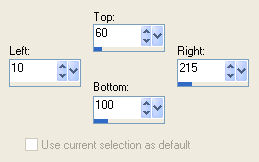
3- Fill
this selection > Selections > Select None > duplicate it 7
(seven) times, aligning
one below the other.
4- Layers > Merge > Merge Visible
5- Save As > My Documents > My PSP Files >
Selections
6- Open a new image of 1024 x 450 px and fill it with
a color that matches the chosen tube.
7- Copy the tube > Selection > Select All > Edit > Paste
Into Selection > Selections > Select None.
8- Effects > 3D Effects > Seamless Tiling -- Default
9- Adjust > Blur > Gaussian Blur > 30,00
10- Effects > Texture Effects > Weave (settings in the
screenshot)
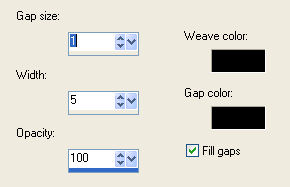
11-
Insert a figure of your choice into the Top.
12- Finish your Top as you prefer.
13- New Layer > Selection > Load/Save Selection > Load
Selection From Disk
14- Fill this selection with a Linear Gradient >
Angle 0=Repeat 0
15- Apply Effects > 3D Effects > Inner Bevel (use the
settings shown in the screenshot)
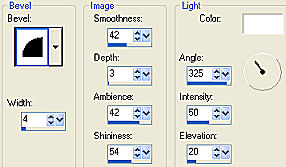
16-
Effects > 3D Effects > Drop Shadow > 1/1/72/2.1
17- Copy another chosen tube and Paste Into
Selection,
lower the opacity to 80%.
18-Selections > Select None
19- Duplicate this layer > Image Mirror.
20- Merge All.
Work created by Edith Spigai
I hope everything is correct.
SP/04-02-2009

Credits:
Tube: By Ivonne (girl)
By Silvie (figure)
Tutorial and formatting: EdithSpigai

Copyright ©2016/2026 - Web Design - NaiseM®