|
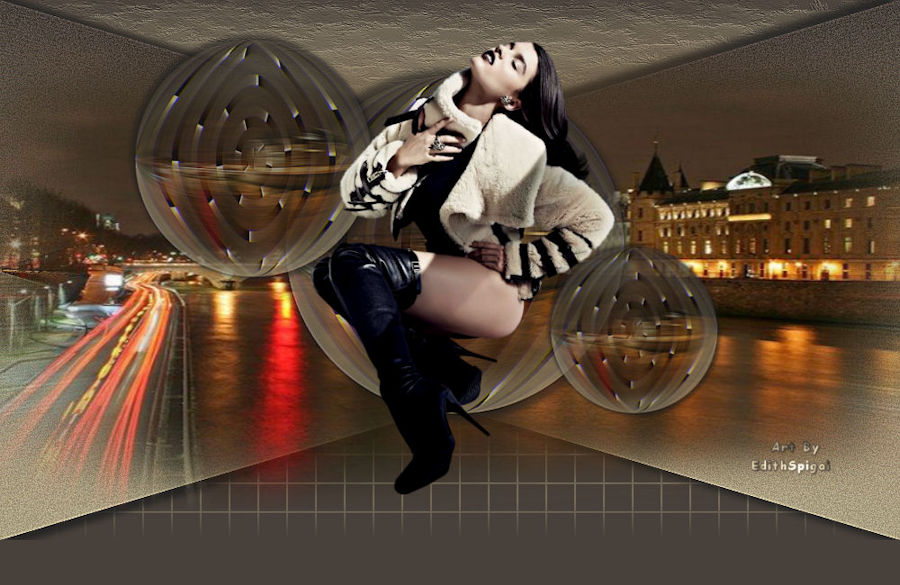 
**TOP
NIGHT DREAMS**

-PSP_9 effects
-Plugin Two Moon > TargetZone
-One Misted
-One Tube
-One mask (attached)
INSTRUCTIONS

Use the little arrow to mark your line
Click it and drag it wherever you like
|
|
1- Open a new image of 1000 x 600, fill it with a
Linear Gradient made of two colors
compatible with your work with these settings:
Angle= 0 > Repeats= 0 > Invert= unchecked.
Select All
2- Copy the Misted and Paste Into Selection > Select None.
3- Adjust > Blur > Motion Blur > 270/100 ( 2 times)
4- Enhance More
5- Duplicate Layer (set Layer 1 aside)
6- Plugin Two Moon > TargetZone > 149/190/201/72/72/74
7- Effects > Geometric Effects > Circle > Transparent
8- Image > Resize > 65%
9- Adjust > Sharpness > Sharpen More
10- Effects > Drop Shadow > 8/8/80/10,00 ( repeat in
negative)
11- Duplicate Layer > Image > Resize > 65%
12- Repeat step 11
(Position the circles to your taste)
13- Merge Visible (set this layer aside until the end of
the work)
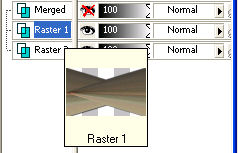
14- Make Layer 1 visible again >
Effects > Geometric Effects > Perspective Horizontal >
100 > Transparent
15- Duplicate layer > Image Mirror > Layers > Merge Down
16- New Layer > With the magic wand select the upper
part > Selections > Modify > Expand 4 >
fill with the gradient from step 1
17- Art Media Effects > Brush Strokes >
37/75/9/59/9/80/21 - light color.
Select None
18- New Layer > With the magic wand select the lower
part > Selections > Modify > Expand 4 >
fill with the gradient from step 1
19- Effects > Texture Effects > Weave 30/2/100 - Fill
Gaps checked (colors of your work)
Select none > Layers > Merge Down
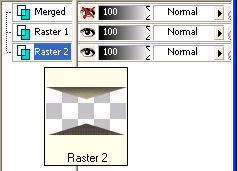
20-
Apply a mask bord bottom (attached)
Merge Group.
21- Image > Canvas Size with the following settings:
Width= 1000 and Height= 650
Bottom= 50 / Top, Left and Right= 0
22 - Go back to the Perspective Horizontal Layer and apply
Drop Shadow 8/8/80/10,00 (repeat in negative)
23- Paste
as New Layer your Misted and position it to your taste.
24- Make the circles visible again and apply your tube.
25- Layers > New Raster Layer
Layers > Send to Bottom
Fill with a color picked from the work.
26-Layers > Merge > Merge All
27- Sign and save as jpeg.
** Tutorial created by Edith Spigai **
SP/14-06-2011

Credits:
Misted: LB Tubes
Tube: Tocha ( Tony Chavarria)
Creation: EdithSpigai
Copyright ©2016/2026 - Web Design - NaiseM®

|