|
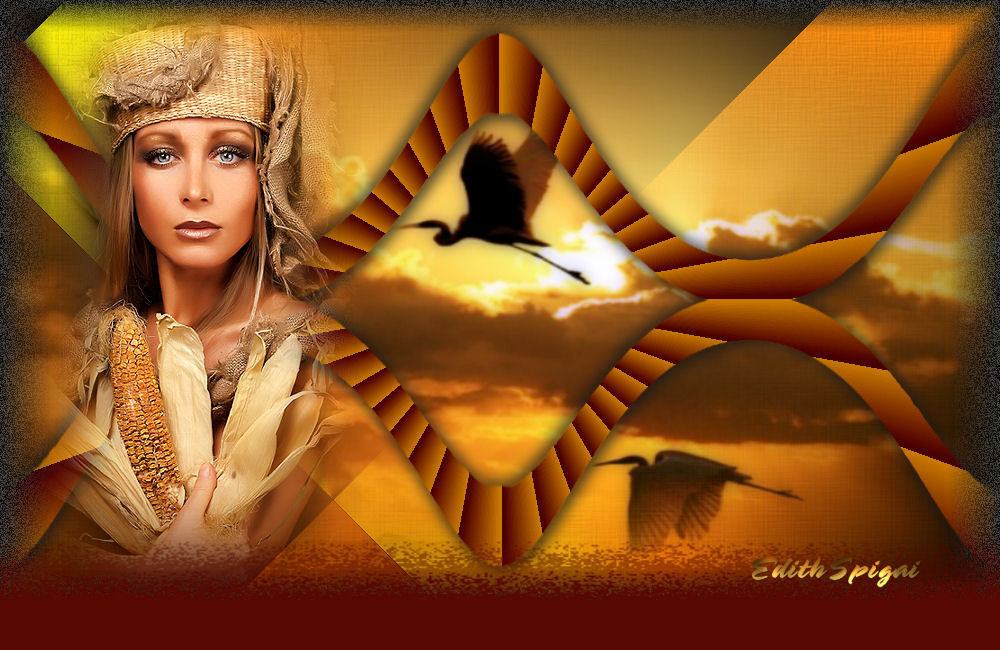 
**TOP
MYSTIC**
MATERIALS
-PSP_9
effects
-Plugin
Freeware Filters
-A Landscape
Misted
-A Tube
INSTRUCTIONS

Use the little arrow to mark your line
Click it and drag it wherever you like
|
|
1-
Open a new image of 1000 x 600, fill with
a Linear Gradient made from two colors
that match
your work with these settings:
Angle= 0 >
Repeats= 0 > Invert= unchecked.
2- Plugin
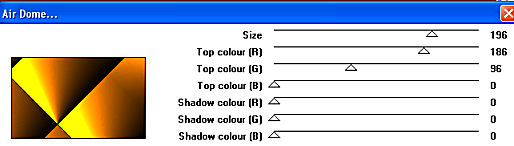
Freeware Filters > Air Dome > Size=196 set the other
items to the colors of your work.
I used (
196/186/96/0/0/0)
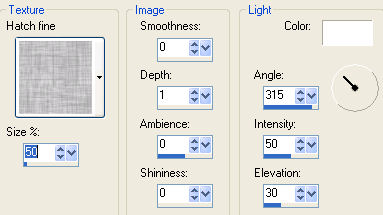
3- Effects
> Texture Effects > Texture
4- Layers >
Duplicate Layer
5- On the copy
of the Layer: Effects > Geometric Effects > Circle >
Transparent
6- Image >
Resize > 95%
7- With the magic
wand select the circle > Selections > Invert >
Modify > Select Selection Borders >
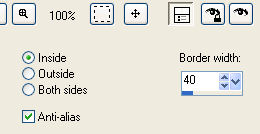
Selections >
Invert > Delete > Select None
8- Effects >
Distortion Effects > Polar Coordinates > Polar to
rectangular
9-
Duplicate layer > Image > Flip > Layers > Merge Down
10-
Effects > Texture Effects > Blind.
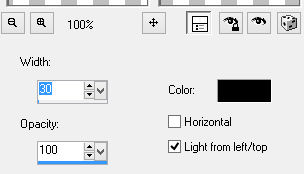
11-Effects >
Drop Shadow > 5/5/70/20,00 ( repeat with negative values)
12- Paste as
New Layer the Misted, position it as you like,
apply the tube.
13- Merge
Visible.
14- Plugin
Alf's Border FX > Border Fade III > 78/27
15- Apply
a Mask TopFlush (attached)
Merge
Group.
16- Image > Canvas Size with the following
settings:
Width= 1000 and Height= 650
Bottom=
50 / Top, Left and Right= 0
17- Layers
> New Raster Layer
Layers > Send to Bottom
Fill with a color picked from your
work.
18-Layers > Merge > Merge All
19- Sign it and save as jpeg.
** Tutorial created by Edith
Spigai **
SP/29-06-2011

Credits:
Tube: By Luz Cristina
Misted: By Ket
Mask: no author credited
Tutorial and Formatting:
Edith Spigai
Copyright ©2016/2026 - Web Design - NaiseM®

|