**TOP LATE AFTERNOON**
Material
- PSP_9 Effects
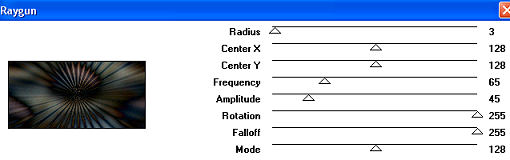
- Filter Factory Gallery A > Raigum
- FM Tile Tools Plugin
- 1 Mask Fade
- Tubes for image composition.
INSTRUCTIONS

Use the little arrow to mark your line
Click it and drag it wherever you like
|
|
1-Open a tube in PSP, choose two colors and place them
in the Materials Palette...
Edit > Copy.
2- Open a New Transparent Image of 1024 x 450px
Fill this image with a gradient formed
by the colors chosen in item 1 > Style Linear >
Angle=0 - Repeats=0 > Invert checked.
3- Selections > Select All > Edit Paste Into
Selection >
Selections > Select None
4- Effects > Image Effects > Seamless Tiling >
Default
5- Adjust > Blur > Gaussian Blur > Radius=30,00
6- Effects > Edge Effects > Enhance More.
10-
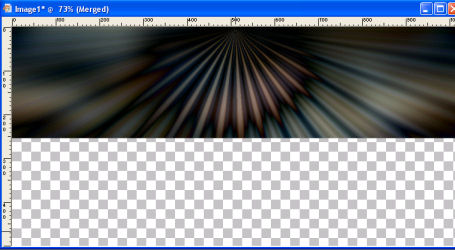
Reflection Effects > Rotating Mirror > 0/0/Repeat
checked.
11-
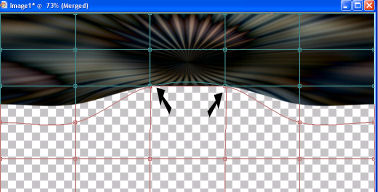
With the Mesh Warp Tool set up
like this:

we will
curve the middle like this:
12-
Moving only these two marked points
13- Plugin FM Tile Tools > Blend Emboss (in the
settings that open)
14- Adjust > Sharpness > Sharpen More.
15-Effects > 3D Effects > Drop Shadow >
4/4/80/8,00
16- Layers > New Raster Layer
Layers > Send to Bottom
Fill with a color captured from your work
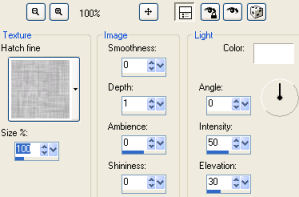
17- Effects > Texture Effects > Texture >
Hatch Fine
with the settings from the screenshot:
18- Apply the Fade Bottom type mask to this layer,
delete and Merge Group.
19- Image > Canvas Size with the
following settings:
Width= 1024 and Height= 550
Bottom= 50 / Top, Left and Right= 0
20- Layers > New Raster Layer
Layers > Send to Bottom
Fill with a color captured
from your work
21- Paste your tubes as you
like, making a harmonious
composition.
22- Layers > Merge > Merge All
23- Sign and save as jpeg.
** Tutorial created on
06/07/2009 by Edith Spigai
**
Credits:
Tubes: By Luz Cristina.
Mask: author not credited.
Creation and Formatting:
EdithSpigai

Copyright ©2016/2026 - Web Design - NaiseM®