|
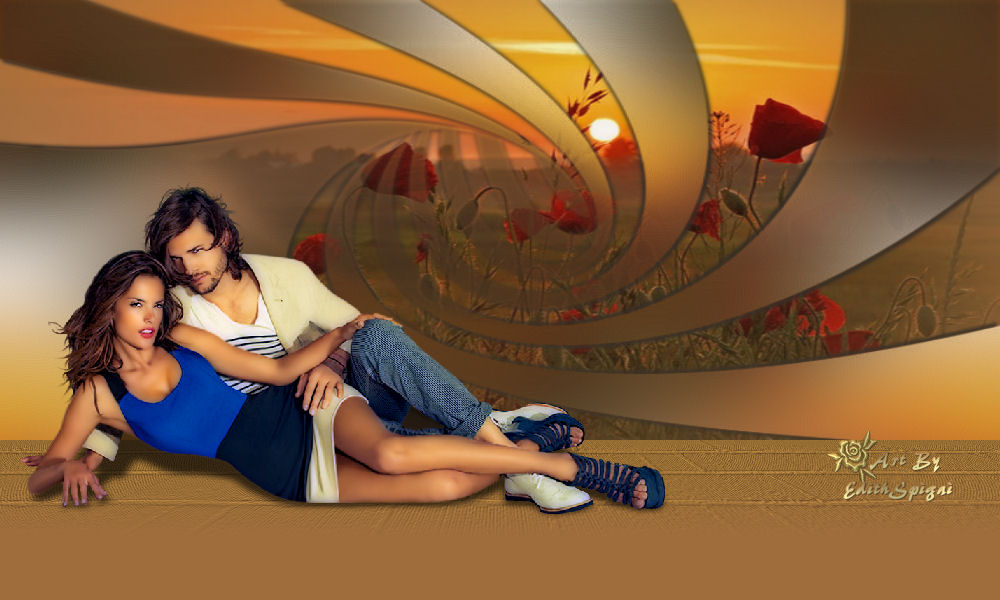 
**Top
Atardecer**
MATERIAL
-EFECTOS DEL PSP_9
-Plugin
MuRa's Meister
-Un Tube
Principal
-Un Misted de Paisaje
INSTRUCCIONES
Usa la flechita para marcar tu línea
Haz clic en ella y arrástrala adonde quieras
|
|
1- Abre un Misted de tu elección > Copy
2- Abre una nueva imagen de 1000 x 550 > Select All
> Paste Into Selection.
3- Effects > Image Effects > Seamless Tiling >
Default
4- Layers > Merge All >
Layers > Promote Background Layer
5- Adjust > Blur > Gaussian Blur > 30,00
6- Effects > Edge Effects > Enhance More.
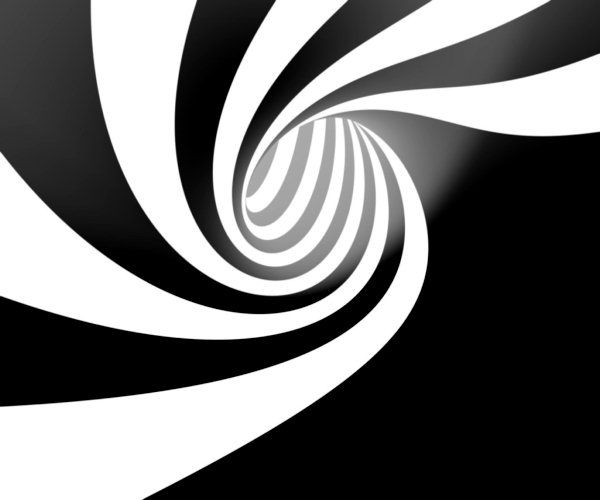
7- Aplica la Mask (adjunta) Narah Mask Abstract_199
Layers > Merge Group.
8- Image > Mirror
9-Effects > 3D Effects > Drop Shadow > 3/3/100/5,00
repite con valores negativos.
10- Nueva Layer > Select All > Paste Into Selection del
Misted.
Layers > Arrange > Send to Bottom. Colócalo a tu
gusto.
11- Nueva Layer, pinta con un color sólido que combine
con tu trabajo.
12- Effects > Texture Effects >Texture
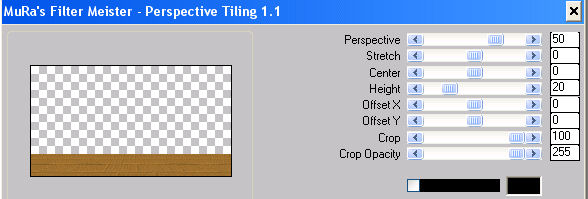
13-Plugin MuRa's Meister > Perspective Tiling >
50/0/0/20/0/0/100/255
14- Layers > Merge Visible.
15- Aplica una mask del tipo Fade > Merge Group
16-Image > Canvas Size con la siguiente
configuración:
Width= 1000 y Height= 600
Bottom= 50 / Top, Left y Right= 0
17- Layers > New Raster Layer
Layers > Send to Bottom
Rellena con un color sólido capturado de tu
trabajo.
18- Aplica tu tube colocándolo a tu
gusto.
*- Opcional > Plugin Xero > Porcelain (con la
configuración que se abra)
Plugin Eye Candy 3.1 > Perspective Shadow >
85/40/63/67/10*
19-Layers > Merge > Merge All
20- Firma y guarda en jpeg.
** Tutorial elaborado por Edith
Spigai **
SP/01-11-2011
Créditos:
Tube Principal > Tocha_23633
Misted: LB_Tubes
Mask: Narah Mask Abstract_199
Tutorial: Creación EdithSpigai
Copyright ©2016/2026 - Web Design - NaiseM®

|