|
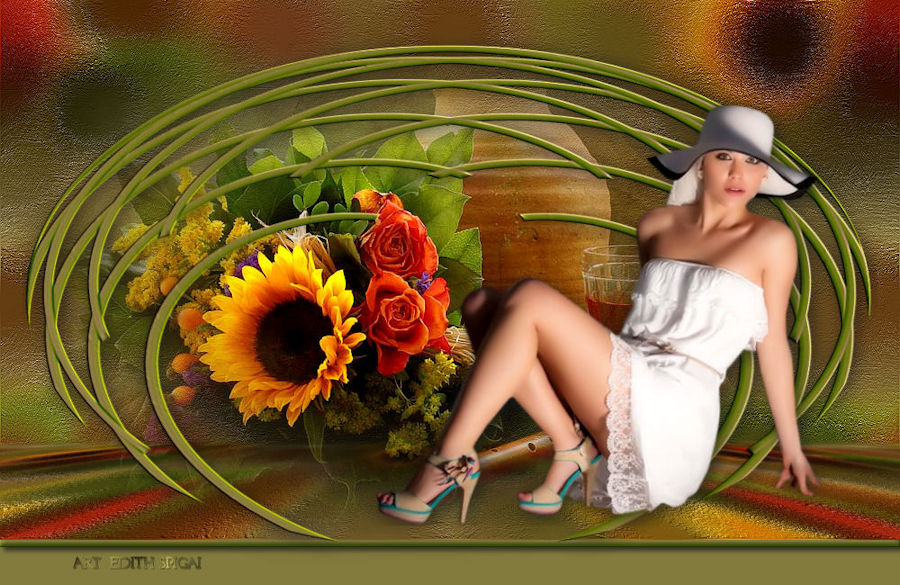 
**TOP
COPIES**
MATERIALES
-Efectos del PSP_9
- Plugin Mura's Meister
-Un Tube
-Un Misted
INSTRUCCIONES

Usa la flechita para marcar tu línea
Haz clic en ella y arrástrala adonde quieras
|
|
1-Abrir una nueva imagen de 1000 x 600
rellena con un Degradado Linear - Angle=0 - Repeat=1
Invert desmarcado, formado por dos colores de tu imagen.
2-Effects > Geometric Effects > Perspective Horizontal >
98 > Transparent.
Image > Mirror
Repite nuevamente el efecto Perspective Horizontal con la
misma configuración.
3-Effects > 3D Effects > Inner Bevel
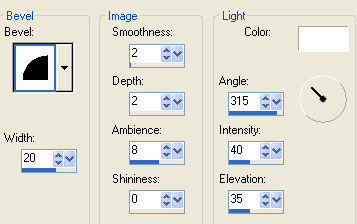
4-
Image resize > 80%
5- Plugin Mura's Meister > Copies > Cards
13/100/-95/-15/30/-40/30/0/100/0/0
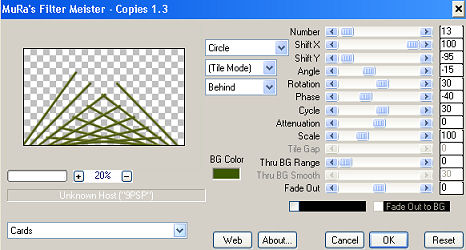
6-
Effects > Reflection Effects > Rotating Mirror
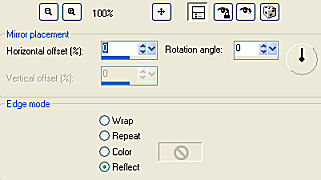
7-
Effects / Distortion Effects / Polar Coordinates /
Rectangular to Polar/Repeat
8- Image > Flip
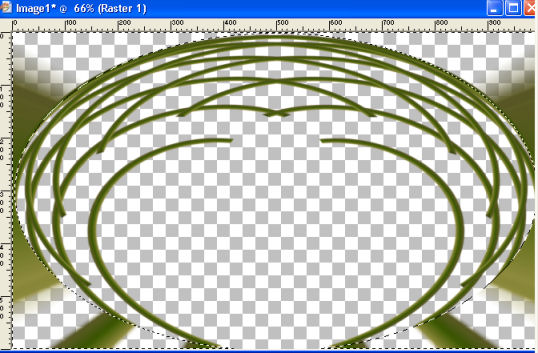
9- Activa View > rulers (regla) - Con la herramienta selection tool configurada en ellipse
centra (500 Alt. x 300 Anch.) la imagen y contornea
el efecto.
-Selections > Invert > Delete
Select > None

10-
Image > Resize 90%
11-Effects > User Defined Filter > Emboss_3
12- Effects > 3D Effects > Drop Shadow > 4/4/70/30
"Reserva esta capa hasta el final del trabajo"
13- Nueva Capa > Arrange= Send to Bottom > Repite el Paso 1.
14- Abrir un Misted de tu elección - Edit > Copy
15- Selections > Select All
Edit > Paste > Paste Into Selection en el misted elegido.
Selections > Select None
16- Effects > Image Effects > Seamless Tiling > Default
17-Adjust > Blur > Gaussian Blur > 20,00
18- Effects > Art Media Effects > Brush Strokes
25/53/20/0/20/40/350
19- Sharpen More
20- Duplicate Layer, cierra la visibilidad de raster 2
21- En la copia de la capa aplica el Plugin Mura's Meister >
Perspective Tiling > 80/0/0/25/0/0/100/255
22- Con el magic wand selecciona la parte transparente,
Selection Modify > inside/outside feather > Outside 25
Delete 4 veces > Select None. Vuelve a activar la visibilidad de
las capas
23- Copia tu Misted como nueva capa - colócalo a tu
gusto.
24- Inserta tu tube usando el Drop shadow de tu
preferencia.
25- Merge Visible
26- Image > Canvas Size con las siguientes configuraciones:
Width= 1000 y Height= 650
Bottom= 50 / Top, Left y Right= 0
27- Layers > New Raster Layer
Layers > Arrange > Send to Bottom
Rellena con un color tomado de tu trabajo.
28- En la capa Merged haz una barrita confeccionada con
la herramienta selection tool
en rectángulo - rellena con degradado, usa Inner Bevel.
Select None.
29- Drop Shadow a gusto.
30- Layers > Merge > Merge All
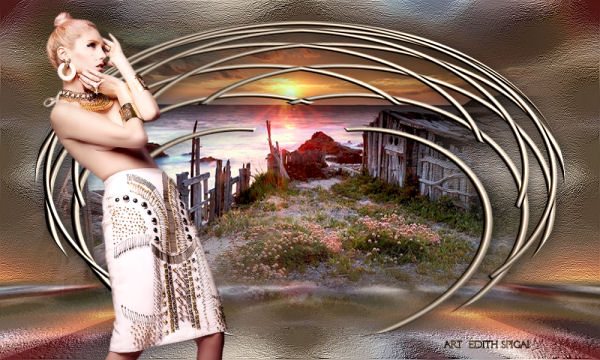
31- Firma y guarda en jpeg.
32- Da formato y decora tu top a gusto.
** Tutorial creado el 18/03/2014 por Edith Spigai **
São Paulo - Brasil

Créditos:
Tubes: By Nara Pamplona
Misted: K@rine / Dani@
Arte y formato: EdithSpigai
Copyright ©2016/2026 - Web Design - NaiseM®

|