|
INSTRUCTIONS

Use the little arrow to mark your line
Click it and drag it wherever you like
|
|
01. Open your tube, Edit Copy and minimize it
02. Open a 1000X500px image and fill it with a color from
your tube
03. Add a new layer
Select All
Paste Into Selection
Select None
Effects / Image Effects / Seamless Tiling: Default
Adjust / Blur / Gaussian Blur: 10,00
Effects / User Defined Filter: Emboss 3
Opacity: 50%
04. Select All
Select / Modify / Contract: 50
Promote Selection To Layer
Select None
05. Activate the layer below (Raster 2)
Merge Down
06. Activate the top layer
Effects / Art Media Effects / Brush Strokes:
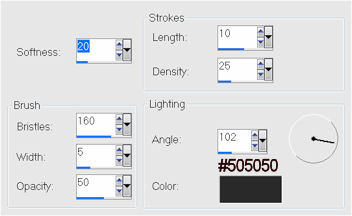
07. Drop Shadow: 5
/ 5 / 80 / 20 / #000000
-5 / -5 / 80 / 20 / #000000
08. Duplicate
Effects / Texture Effects / Mosaic - Glass:
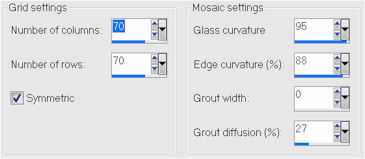
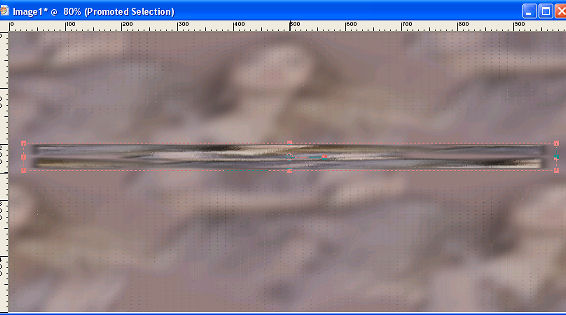
09. On the same Layer,
using the Deform Tool, reduce it as shown in the screenshot:
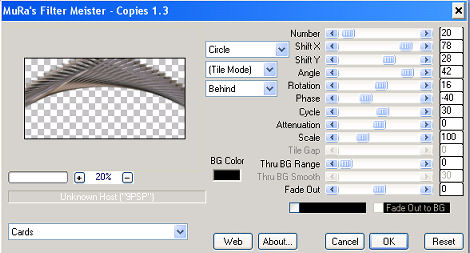
10. Plugin MuRa's
Meister > Copies > settings in the screenshot:
11. FM Tile Tools >
Blend Emboss
12. Adjust > Sharpen
13. Go back to Raster 1 and paste a landscape Misted.
14. Merge Visible.
15. Copy your tube > Drop Shadow as you like.
16. Merge visible.
17. Adjust > Brightness and Contrast > 15
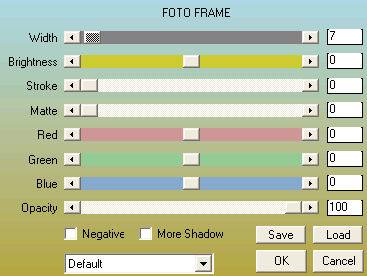
18. Plugin AAA Frames > Foto Frame
19. Merge All
20. Sign it and save as jpeg.
** Tutorial created by Edith Spigai **
SP/18-01-2012

Credits:
Tube: By Anna.br
Misted: LB Tubes
Tutorial: Silvia Terencio/EdithSpigai
Formatting: EdithSpigai
Copyright ©2016/2026 - Web Design - NaiseM®

|