|
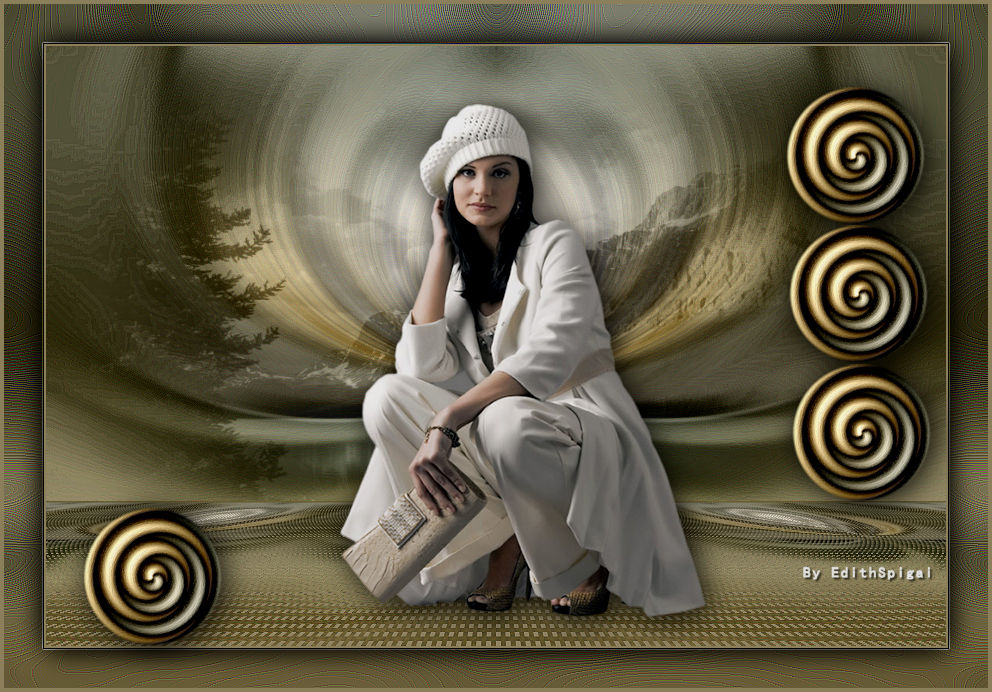 
**WINTER**
MATERIALS
-PSP_XVII Effects
-Filters Unlimited 2.0 >
-Plugin MuRa's Meister
Effects > Plugins > Kang 2
INSTRUCTIONS
Use the little arrow to mark your line
Click it and drag it wherever you like
|
|
1- Open a new image of 900 x 600.
2- Fill with a gradient, with the following settings:
Style: Sunburst > Repeats: 0 > Invert checked
Center Point with Focal Point at H and V = 50
Colors Used: #424535 - #948865
3- Open a misted > Edit Copy > Paste Into Selection in the
new image.
4-Adjust > Radial Blur > Twirl/80/20/0/10/10
Elliptical unchecked.
5- Enhance More.
6-Filters Unlimited 2.0 > Special Effects 1 > Plastic
Surface >
155/61/144/54
7- Reflection Effects > Rotating Mirror > 0/0 - Reflect
checked.
8- Adjust > Sharpen More
9- New Layer > Select All > Paste into selection of the
misted from step 3.
10- Blend Mode of this Layer > Luminance (Legacy)
11- Opacity > 50 or 60%
12- Layers > Merge Down
13- Layers > Duplicate
14- Effects > Texture Effects > Weave:
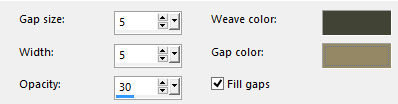
15- Adjust > Sharpen More
16- Plugin MuRa's Meister > Perspective Tiling
80/0/0/20/0/0/100/255
17- Layers > Merge Down
18- Paste your tube as a new layer, position it as you
like.
19- Effects > Drop Shadow . 10/10/50/50
20- Adjust > Brightness and Contrast > Brightness/Contrast
> -10/0
21- Layers > Merge Down
22- Image > Add Borders > 2 px in the light color (#948865 )
23- Edit Copy
24- Image > Add Borders > 40 px in white (#ffffff )
25- Select with Magic Wand > Paste Into Selection
26- Adjust > Blur > Gaussian Blur > 25,00
27- Enhance More > 2 times
28- Selections > Invert
29- Effects > Drop Shadow . 4/4/86/43
Select > None
30- Image > Add Borders > 2 px in the light color (#948865 )
~-~-~-~-~-~-~-~-~-~-~-~-~-~-~-~-~~-~-~-~-~-~-~-~-~-~-~-~-~-~-~-~-~-~-~-~-~-~-~-~-
" DECO
- SPIRAL"
1-Open an image of 300 x 300
2-Fill with the gradient from step 2
3-Effects > Geometric Effects > Circle > Transparent
checked
4 - Effects > Plugins > Kang 2 > IceCream Spiral with the
following settings:
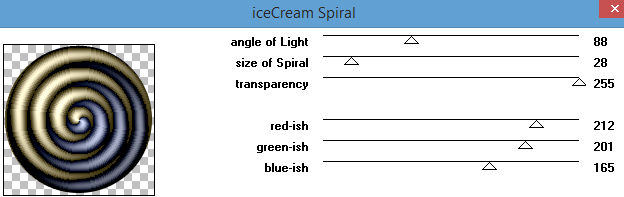
NOTE: change only the colors (red-ish, green-ish or
blue-ish) to match the colors of the gradient applied
5 - Effects > Art Media Effects > Brush Strokes
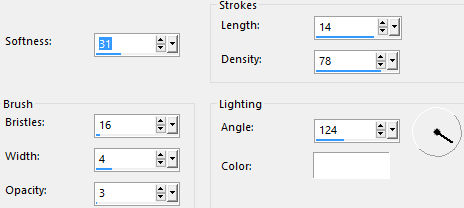
6 - Image > Resize > 50%
7- Edit > Copy and paste as a new layer in your work.
8- Effects > Drop Shadow . 4/4/86/43
9- Position as you prefer > duplicate and paste
harmoniously.
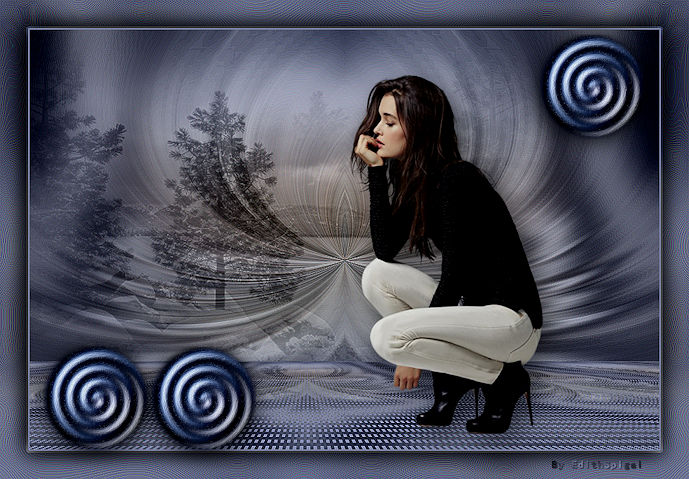
See the final results.
-~-~-~-~-~-~-~-~-~~-~-~-~-~-~-~-~~-~-~-~-~-~-~-~~-~-~-~-~-~-~~-
Finish your work > Merge All
Adjust > Brightness and Contrast > Brightness/Contrast >
-10/0
Sign it and save as jpeg.
** Tutorial created by Edith Spigai **
SP/15-06-2016

Credits:
Tubes: By LB Tubes
Misteds: By Nara Pamplona
By Luz Cristina
Creation and Formatting: EdithSpigai Hilda Rosa
Copyright ©2016/2026 - Web Design - NaiseM®

|