|
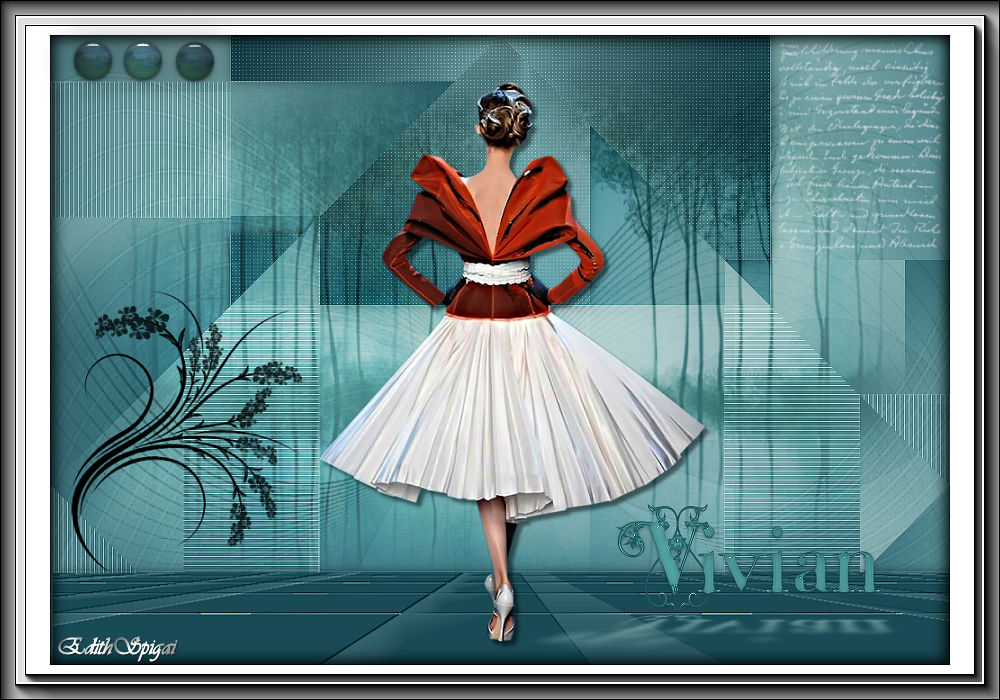 
**VIVIAN**

-Efectos del PSP_X8
Plugin Mehdi > Sorting Tiles
Plugin Carolaine and Sensibility
Plugin Mura's Meister
Plugin Alien Skin Candy 5: Impact
-Tube
-Misted
-Decos/Mask
INSTRUCCIONES

Usa la flechita para marcar tu línea
Haz clic en ella y arrástrala adonde quieras
|
|
1- Abre la imagen transparente Alpha_Alpha > Windows >
Duplicate.
Cierra la original. Renombra a Layer Raster 1
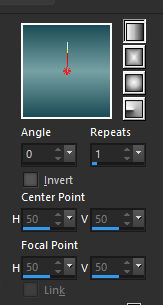
2- Rellena con un gradiente linear formado por dos
colores:
Foreground = (#1c4b56)
Background = (#77a2a4)
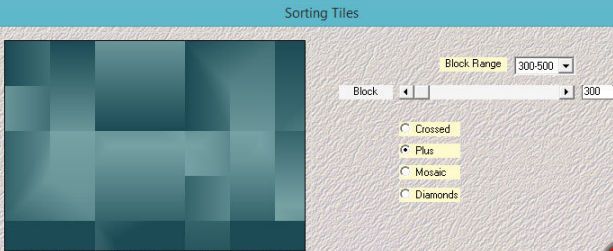
3- Plugin Mehdi > Sorting Tiles
4- Effects > Edge Effects > Enhance
5- Selections > Load/Save Selection > Load Selection
From Alpha Channel > Selections #1
6- Layers > Promote Selection to Layer > Select None
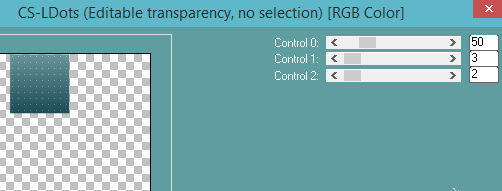
7- Plugin Carolaine and Sensibility > CS_Dots 50/3/2
8- Adjust > Sharpen More
9- Effects > Drop Shadow > 5/5/50/10 en color negro -
repetir en negativo.
10- Effects > Image Effects > Seamless Tiling > Side by
Side
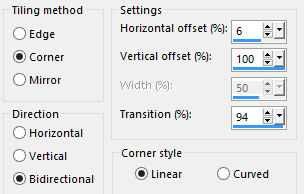
Activa Raster 1
11- Selections > Load/Save Selection > Load Selection
From Alpha Channel > Selections #2
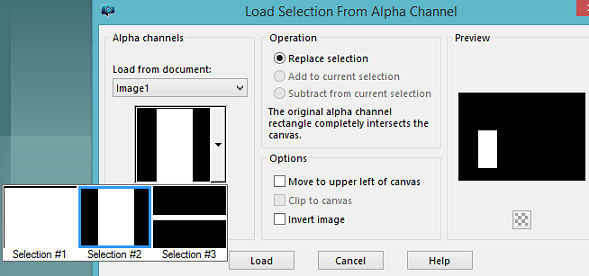
12- Layers > Promote Selection to Layer > Select None
13- Plugin Carolaine and Sensibility > cs_texture >
52/0/175/10
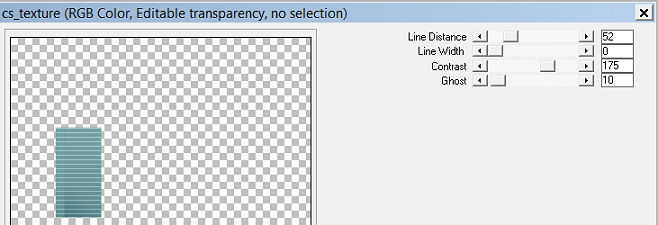
14-Adjust > Sharpen More
15- Layers > Duplicate > Image > Mirror (horizontal)
16- Effects > Image Effects > OffSet > 49/0 - Custom y
Transparente marcados.
17- Layers > Merge Visible
18-Adjust > Sharpen
19- Selections > Load/Save Selection > Load Selection
From Alpha Channel > Selections #3
20- Plugin Mura's Meister > Perspective Tiling >
80/0/0/100/0/0/100/255
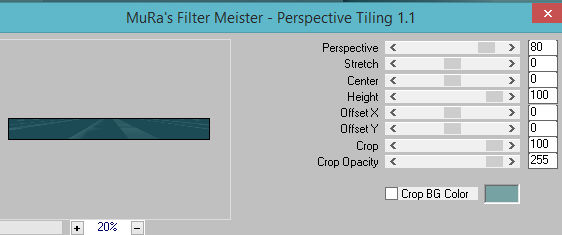
21- Layers > Promote Selection to Layer > Select None
22- Effects > User Defined Filters > Emboss_3
23- Effects > Drop Shadow > 0/0/80/20 en color negro
24- En la Layer Merged > Plugin Simple > Blintz
25- Nueva Layer > rellenar con color blanco.
26- Layers > New Mask layer > From Image >
Narah_Mask_0958
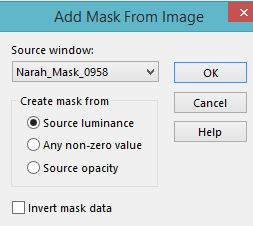
27- Layers > Merge Group
28- Effects > Edge Effects > Enhance
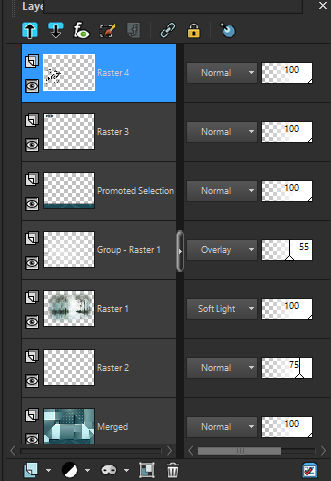
29- Layers > Opacity 55% > Blend Mode > Overlay (u
otro)
30- Activa la Layer Merged > Select All
31- Edit > Copy en el Misted > Nueva Layer > Paste Into
Selection > Select None
32- Layers > Blend Mode > Soft Light ( u otro)
33- Activa la Layer Merged > aplica el texto adjunto (u
otro) con la herramienta Paint Brush
en el lado superior derecho > Opacity 75
34- Activa la Layer Top y aplica el deco_vivian en el lado
superior izquierdo (colorize si es necesario)
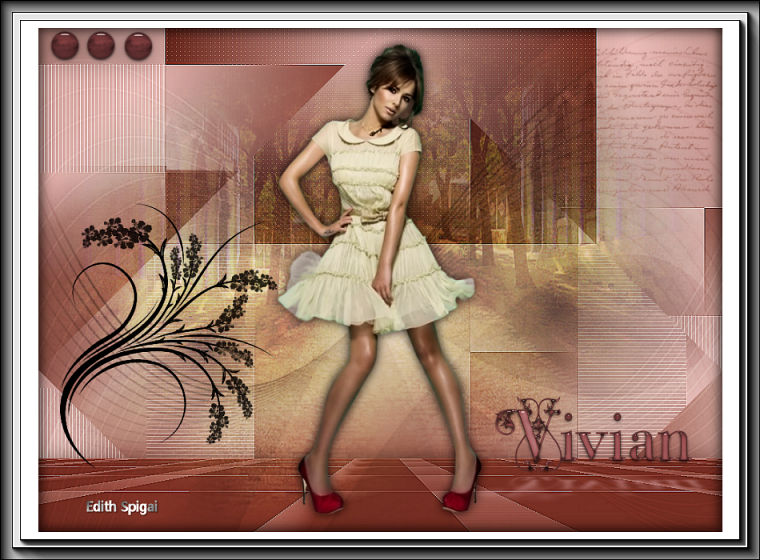
35- Aplica el Deco Floral y posiciónalo como resultado
final de la Tag
36- Activa la herramienta Text y escribe el nombre Vivian

37- Plugin Alien Skin Candy 5: Impact > Glass > Clear (
u otro)
38- Plugin Alien Skin Candy 5: Impact > Perspective
Shadow > Reflect in Front
En la pestaña Basic elige el color deseado.
39- Pega tu tube usando Drop Shadow
40- Merge Visible
41- Image > Resize 90% (All Layers desmarcado)
42- Con Magic Wand selecciona la parte transparente y
rellena con color blanco.
43- Plugin AAA Frames > Foto Frame
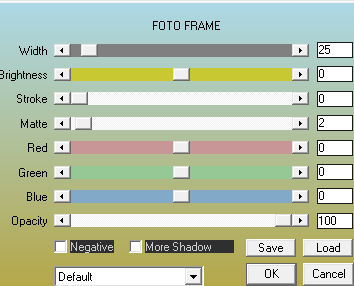
44- Repetir el paso 42 modificando Width > 15
45- Effects > Drop Shadow > 5/5/50/20 en color negro -
repetir en negativo.
Select > None
46-Plugin AAA Filters > Custom > Sharp (o como
prefieras...)
47- Layers > Merge All
48- Firma y guarda en jpeg.
** Tutorial elaborado en São Paulo_Brasil_09/08/2017 por
Edith Spigai **
Créditos:
Tube: By Thafs
Misted: By Tatie
Mask: Narah
Tutorial: Edith Spigai
Copyright ©2016/2026 - Web Design - NaiseM®

|