|
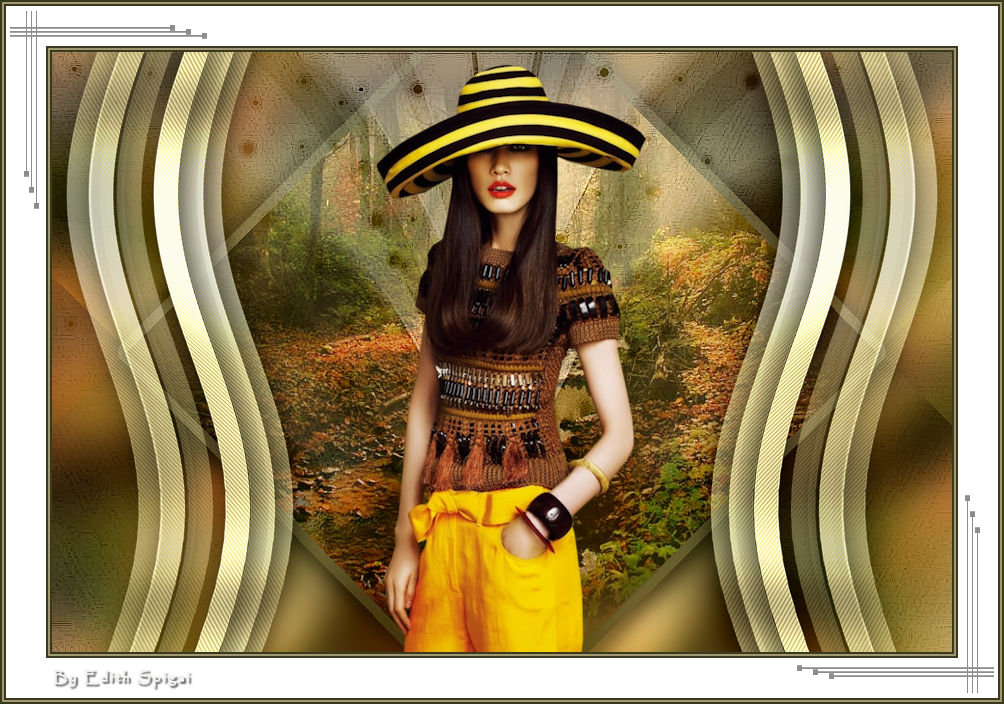 
**WILD TAG**

-PSP_X7 effects
-Plugin MuRa's Meister
-Plugin Simple
-Plugin Greg's Factory Output Voll II
-Plugin Caroline And Sensibility
-Plugin FM Tile Tools
-Plugin AAA Filters
-Tube/Misted
-Selection (attached)
-Mask/Deco (attached)
INSTRUCTIONS
Use the little arrow to mark your line
Click it and drag it wherever you like
|
|
1- Open a Misted in the Workspace
Edit > Copy
Minimize it and set it aside
2- Open a New Transparent Image of 900 x 600 pxs,
fill it with a Linear Gradient -
Angle=0 - Repeat=1
- color 1 (#3A391e) = 2 (#9f9871)
Invert checked, made up of two colors from your image.
Selections > Select All
Edit > Paste > Paste Into Selection
Selections > Select None
3- Effects > Image Effects > Seamless Tiling > Default
4- Adjust > Blur >
Gaussian Blur > Radius: 30,00
5- Plugin Simple >
Diamond
6- User Defined
Filter > Emboss_3
(set this layer aside)
7- New Layer >
fill it with the background color (#9f9871)
8- Effects >
Geometric Effects > Perspective Horizontal > 95
9- Image > Mirror
(horizontal)
10- Effects > Geometric Effects > Perspective Horizontal
> 95
11- Image > Resize
> 70%
12- Image > Free rotate:
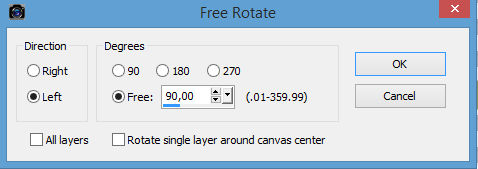
13- Plugin Greg's Factory Output Voll II > Pool Shadow >
Default
14- Plugin Caroline
And Sensibility > CS-DLines > 40/5
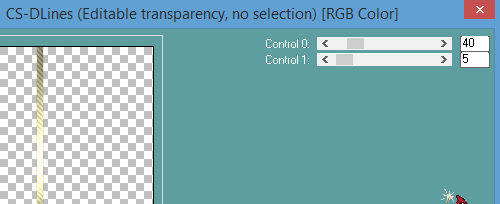
15- Plugin FM Tile
Tools > Blend Emboss > Default
16- Effects >
Distortion Effects > Wave
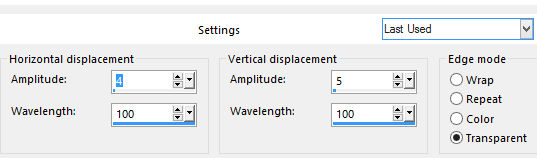
17- Effects > Drop
Shadow > 4/4/86/43
18- Plugin Mura's
Meister > Copies
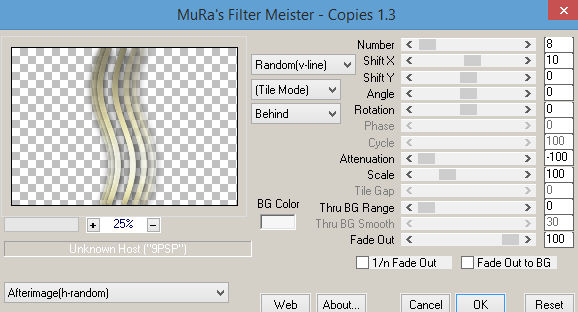
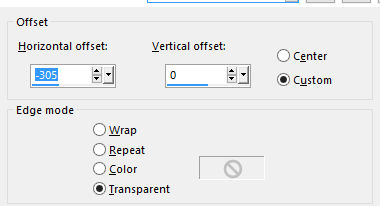
19- Effects > Image
Effects > Offset
20- Layers > Duplicate > Image > Mirror (horizontal)
21- Layers > Merge
Down
(set this layer aside)
22- Activate raster
1
Selections > Load/save > Load Selection From Disk -
tag_1
23- Promote
Selection To Layer
24- New Layer and paste into selection the misted from item 1
25- Layers > Blend Mode > Screen
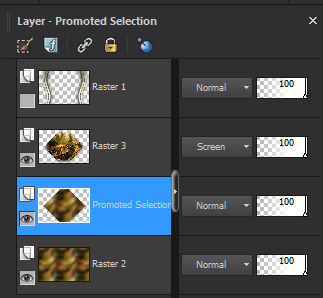
26- Activate the Promoted layer
27- Selections > Modify > Select Borders
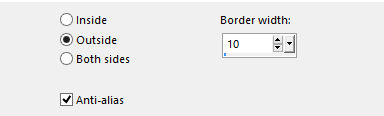
28- Fill with the gradient from item 2 > Select > None
29- Effects > Drop
Shadow > 4/4/86/43 (repeat in negative)
30- New Layer and
fill it with the color #f6f6f6
31- Apply the Mask Narah_0615 > Merge Group
32- Opacity 50%
33- Effects > Enhance More
34- Insert your tube using Drop Shadow.
35- Layers > Merge Visible
36-Plugin AAA Filters > Custom > Landscape
37- Image > Add Borders > 2 px in color 1 (#3A391e)
38- Image > Add Borders > 2 px in color 2 (#9f9871)
39- Image > Add Borders > 2 px in color 1 (#3A391e)
40- Image > Add Borders > 40 px in white >#ffffff
41- Repeat items 37-38-39
42- Apply the Deco - pixelcorners_03 as in the original Tag.
43- Effects > Drop Shadow > 1/0/35/0,00
44- Layers > Duplicate > Image > Mirror(horizontal) and
Mirror vertical (Flip)
45- Layers > Merge > Merge All
46- Sign it and save as jpeg.
** Tutorial created in SP_27/07/2016 by Edith Spigai
**
Credits
Tube: K@rine Dream's
Misted: By anna.br
Mask: Narah
Tutorial Edith Spigai

Copyright ©2016/2026 - Web Design - NaiseM®

|