|
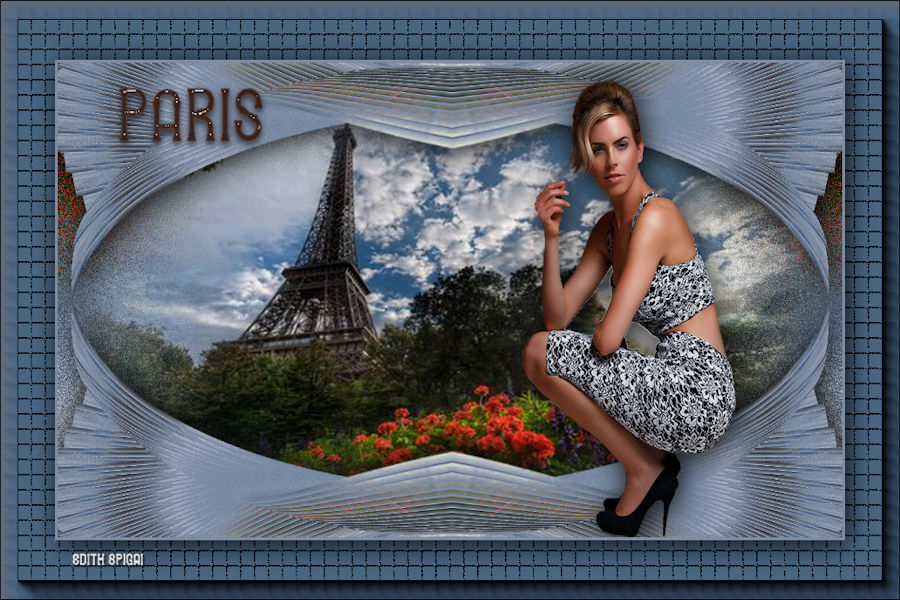 
**PARIS**
MATERIAL
-PSP_9 effects
-A Tube
-A Misted
-Plugin Mura's Meister
-Plugin Screen Works
-Plugin AAA Frames
-Font(here)
INSTRUCTIONS

Use the little arrow to mark your line
Click it and drag it wherever you like
|
|
1- Open a Misted in the Workspace
Edit > Copy
Minimize it and set it aside
2- Open a New Transparent Image of 900 x 500 pxs,
fill it with a Linear Gradient - Angle=0 - Repeat=1 -
color 1 (#48657f) = 2 (#7c90a6)
Invert checked, made up of two colors from your image.
Selections > Select All
Edit > Paste > Paste Into Selection
Selections > Select None
3- Effects > Image Effects > Seamless Tiling > Default
4- Layer > Duplicate and set the copy aside.
5- On the raster 1 Layer apply: Adjust > Blur > Gaussian
Blur with Radius: 25,00
6- Effects > Texture Effects > Mosaic Glass:
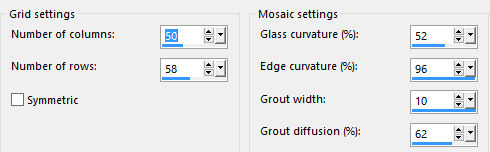
7- **Set this Layer aside until the end of the work**
8- On the copy of the Layer apply: Adjust > Blur > Radial
Blur
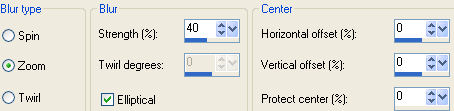
9-Effects > Edge Effects > Enhance More
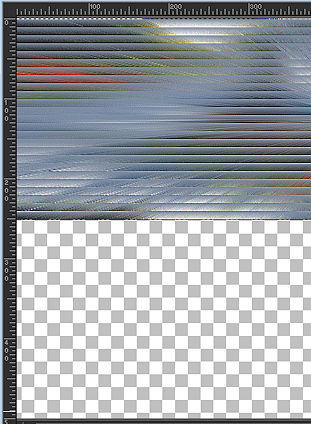
10- Effects > Texture Effects > Blinds
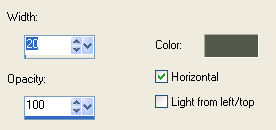
11- With the
Deform Tool raise this image up to 250,
as in the print:
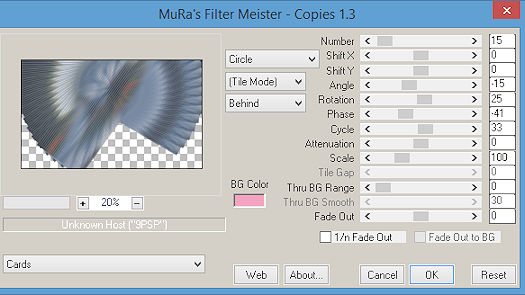
12- Plugin Mura's Meister > Copies
13- Effects >
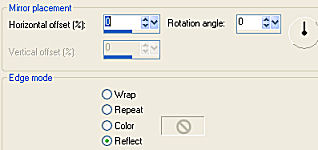
Reflection Effects > Rotating Mirror
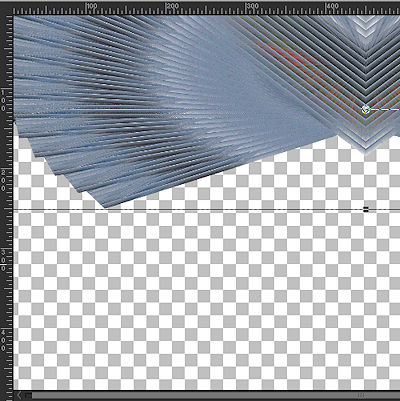
14- With the Deform Tool raise this image up to
250,
as in the print:
15- Effects > Distortion Effects > Punch > 100
16- Effects > Geometric Effects > Spherize
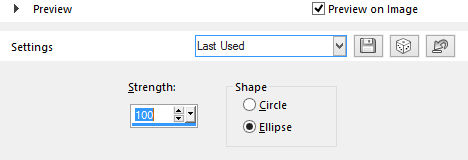
17- Effects > 3D Effects > Drop Shadow > 4/4/86/43,00
18- Layers > Duplicate
19- Image > Mirror Vertical (Flip)
20- Layers > Merge Down
21- Adjust > Sharpen
22- Activate the raster 1 layer
Selections > Select All
Edit > Paste > Paste Into Selection
the Misted from item 1
Selections > Select None
23-Adjust > Brightness and Contrast > Brightness/Contrast
> -10/0
24- Merge Visible
25- Image > Add Borders 3 pxs. in color 2 (#7c90a6)
26- Image > Add Borders 60 pxs. in color (#ffffff)
27- Select this border with the magic wand and fill it with
color 1 (#48657f)
28- Plugin Screen Works > Aged Mosaic
29- Selections > Invert
30- Effects > 3D Effects > Drop Shadow > 4/4/86/43,00
31-Select > None
32- Image > Add Borders 3 pxs. in color 1 (#48657f)
33- Plugin AAA Frames > Foto Frame
20/0/0/0/0/0/0/100
34- Insert your tube using drop shadow.
35- Activate the Text Tool and type the word
Paris.

36- Apply: Plugin
Eye Candy 5: Impact > Glass > Clear
*choose the effect in the colors of your work*
37-Layers > Merge > Merge All
38- Resize the Tag if necessary to 900 x 600
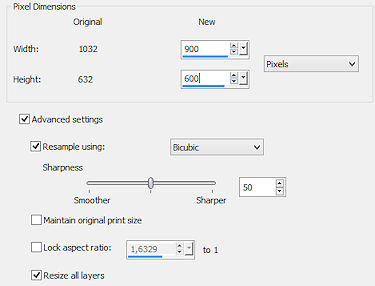
39- Sign it and save as jpeg.
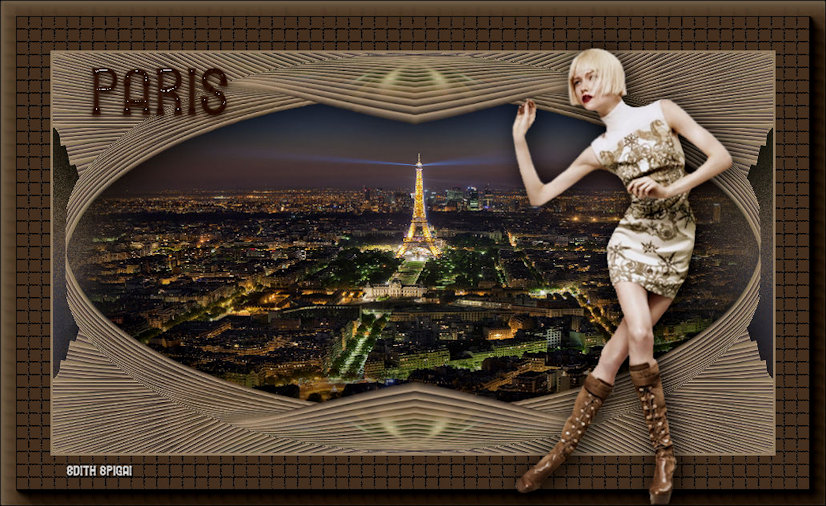
** Tutorial
created by Edith Spigai **

CREDITS:
Tube: Mara Pontes
Misted: LB Tubes
TUTORIAL - EDITH SPIGAI
SP/18-07-2016
Copyright ©2016/2026 - Web Design - NaiseM®

|