|
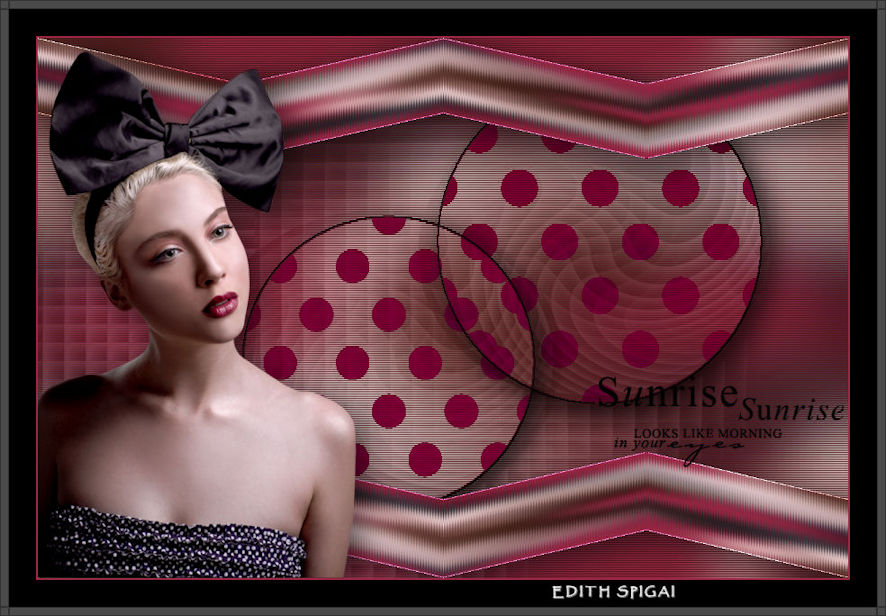 
** MURA'S **

-PSP_X7 Effects
-Plugin MuRa's Seamless
Plugin AAA Filters > Foto Frame
-Tube, Mask, Brush
INSTRUCTIONS

Use the little arrow to mark your line
Click it and drag it wherever you like
|
|
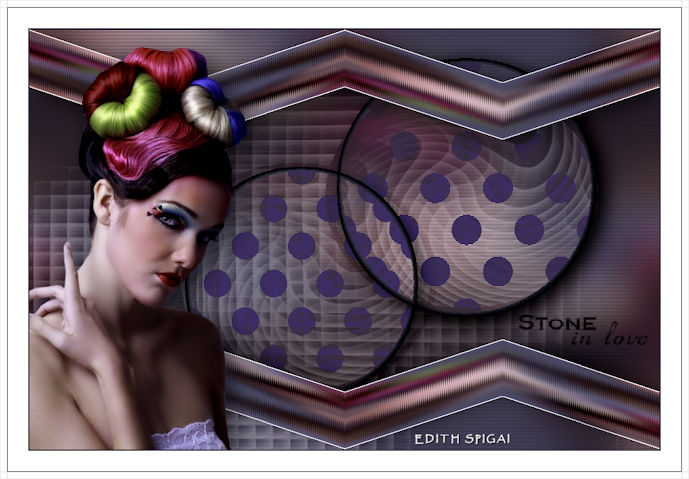
1- Open a new image of 900 x 600 - fill it with a
gradient
Linear > A=0/R=1 - invert checked.
2-Open a tube
> Edit Copy.
3- Select All and paste into selection on the chosen tube >
select none.
4- Effects > Image Effects > Seamless Tiling > Default
5- Adjust > Blur
> Gaussian Blur > 30.00
6- Duplicate Layer
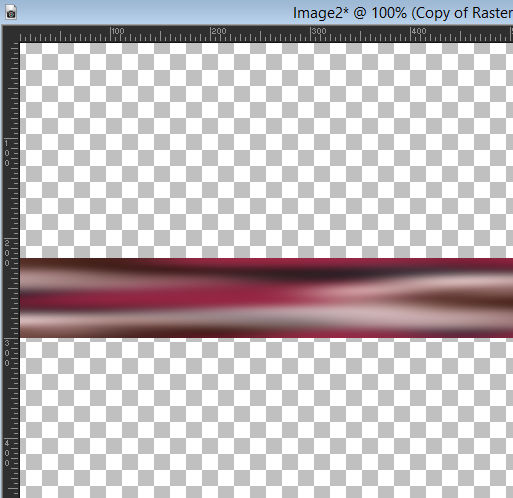
7- On the layer copy, using the Pick Tool
shrink the image
as shown in the screenshot.
8- Plugin Mura's
Seamless > Shift at Zigzag > 2/32/0/128/255/0
9- Effects > Enhance More
10- Image > Mirror Vertical (Flip)
11- Objects >
Align > Top
12- Effects > Drop Shadow > 10/10/50/50 - color #000000
13- Duplicate Layer
14- Image >
Mirror Vertical (Flip)
15- Layers > Merge Down
*Set this layer aside, hiding its visibility.
16- Go back to
Raster 1 and apply:
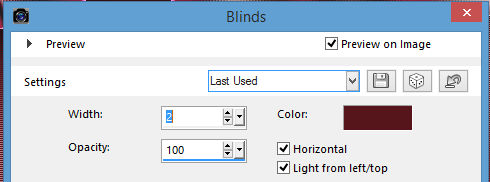
Effects > Texture Effects > Blinds
17- Effects >
User Defined Filter> Emboss_3
18- New Layer > fill with Flood Fill > in white
#ffffff
19- Apply the Mask @SilvanaPc (attached)
20- Merge Group
21- Effects >
User Defined Filter> Emboss_3
22- Layers > Blend Mode > Soft Light
23- New Layer > Selections > Load/save > Load Selection
From Disk - Muras_2
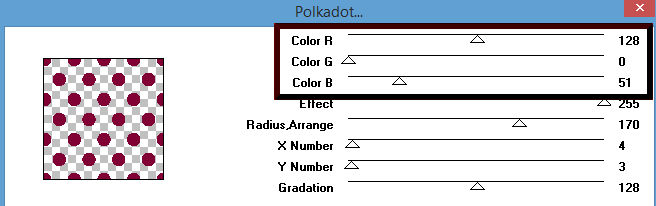
24- Plugin Mura's Seamless > Polka Dot
128/0/51/255/170/4/3/128
-in the first 3 items set according to the colors
of your image.
25- Effects > 3D
Effects > Chisel > Solid Color
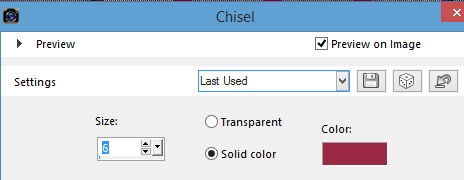
26- Layers >
Blend Mode > Darken
27- Effects > Drop Shadow > 10/10/50/50 - color #000000
28- Selections > Select None
29- Layers
Duplicate
30- Image > Resize 90%
31- Effects > Image Effects > OffSet
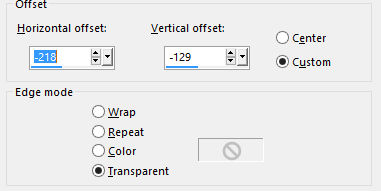
32- Layers > Merge Down
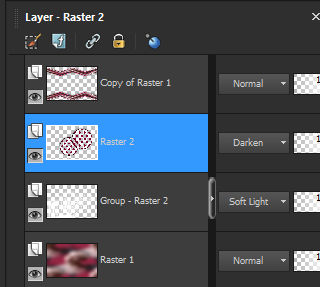
33- Apply your
tube, using Drop Shadow,
decorate with brushes of your preference.
34- Adjust > Brightness and Contrast > Brightness/contrast
35- Layers > Merge Visible
36- Image > Add
Borders > 2 px in the dark color of your work.
37- Image > Add Borders > 40 px in white >#000000
38- Plugin AAA Filters > Foto Frame
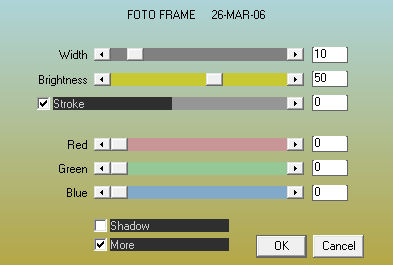
39- Layers > Merge > Merge All
40- Sign it and save as jpeg.

Copyright ©2016/2026 - Web Design - NaiseM®

|