|
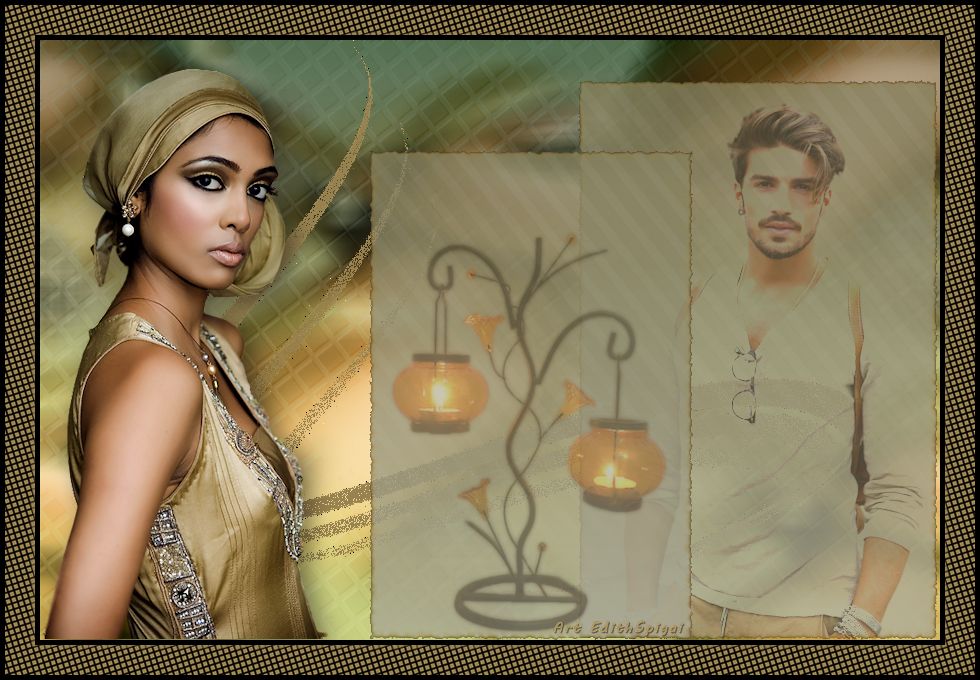 
Tag
Moments

MATERIAL
PSP_9 Effects
3 tubes
INSTRUCTIONS

Use the little arrow to mark your line
Click it and drag it wherever you like
|
|
1-Open a main tube in PSP, choose two colors and
Edit > Copy.
2- Open a New Transparent Image of 900 x 600px
Fill this image with a gradient formed
by the colors chosen in item 1 > Style Linear > Angle=0
- Repeats=0 > Invert Checked.
3- Selections > Select All > Edit Paste Into Selection >
Selections > Select None
4- Effects > Image Effects > Seamless Tiling > Default
5- Adjust > Blur > Average > 30
6- Effects > Artistic Effects > Halftone
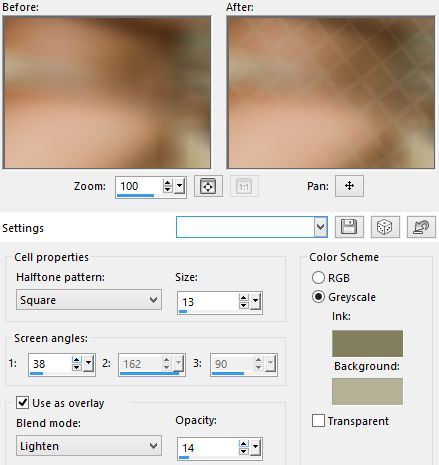
7- User
Defined > Emboss_3
8- Nik Software > Color Efex Pro 3.0 Complete:
Choose > Bicolor Filters > colors of your work
9- New Layer and paint it with a golden color, silver....
or one of your preference...I used=#988250
10- Apply the Mask > Nara_Mask_0457 (attached) > Merge
Group
11- Change the Blend Mode to Dissolve and resize to
90%
12- Adjust > Sharpen More
13-Layers > Merge Down
14- Layers > New Raster Layer
15- With the
Selection Tool set to Rectangle click on:
Custom Selection
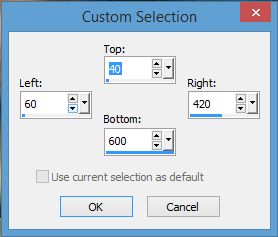
16-
Fill this layer with the gradient from item 2.
17- Effects > Artistic Effects > Halftone
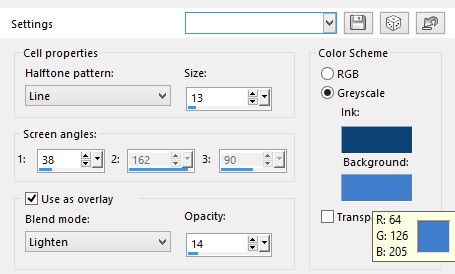
18- Alien
Skin Xenofex 2 > Burnt Edges
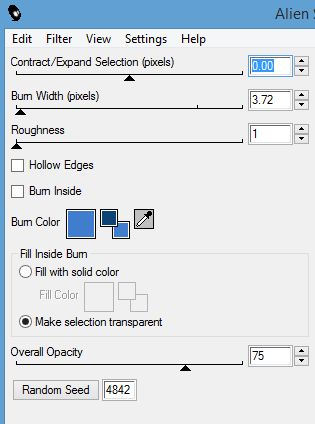
19- Drop
Shadow > 8/0/50/35 in white.
20- Layers > Opacity 70%
21- Effects > Image Effects > Offset
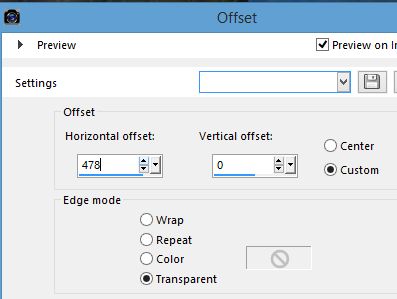
22- Layers
Duplicate
23- Image Resize - 90%
24- Effects > Image Effects > Offset > H=(-200) -
V=(-44)
Custom - Transparent
25- Apply the tubes overlapping on the squares...
-change the blend to hard light or choose another blend (optional)
on the main tube > use the drop shadow from the previous item
- Merge Visible.
26- Image > Add Borders > 5 px in the dark color of your
work.
27- - Image > Add Borders > 30 px in the light color of your
work.
-
select with the magic wand and apply:
28- Effects > Artistic Effects > Halftone
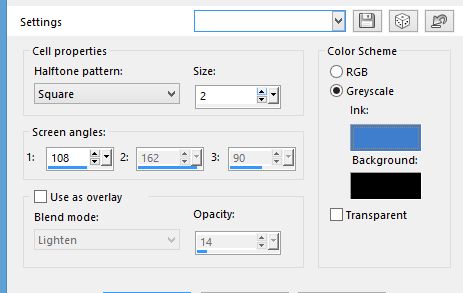
29- Repeat
Step 26.
30- Sign it and save as jpeg.
** Tutorial created (edited) on 09/04/2015 by Edith
Spigai **
Credits:
Female Tubes > by Mara Pontes
Male Tubes By Min@
Decorations: Denise Worisch/(candle) no author credited.
Tutorial and Formatting: EdithSpigai
Copyright ©2016/2026 - Web Design - NaiseM®

|