|
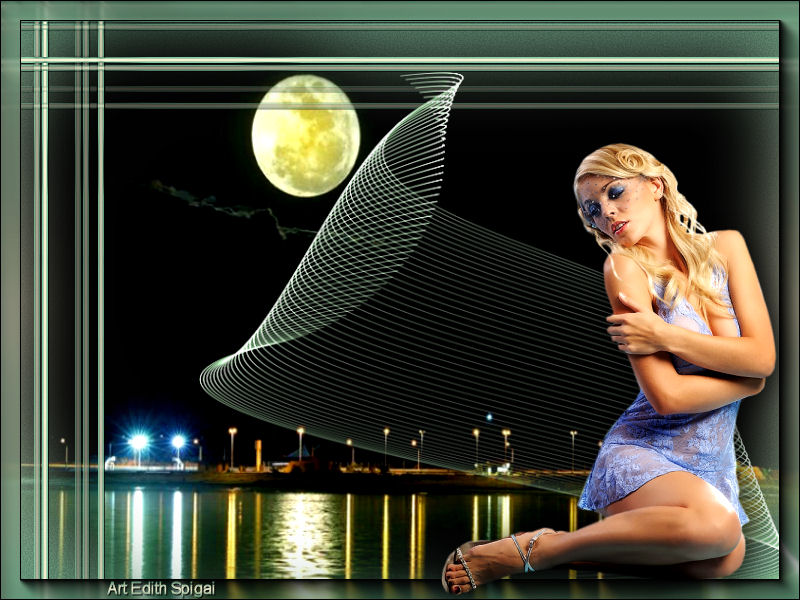 
TAG MOONLIGHT

Material
-PSP_9 Effects
-Plugin MuRa's Meister > Copies
-Plugin DragonFly > Sinedots_II
-Plugin AAA Frames > Foto Frame
-One Tube
-One Misted
INSTRUCTIONS

Use the little arrow to mark your line
Click it and drag it wherever you like
|
|
1- Open a new image of 800 x 600
2- Fill it with a Linear gradient - Angle 0 / Repeats
1 - invert unchecked
in the colors of your work.
3- Duplicate Layer
4- On raster 1: Add Noise > 5 > Uniform and Monochrome
checked.
5- Sharpen More
6- Set this layer aside by turning off its visibility.
7- On the
copy of the layer: Effects > Geometric Effects >
Perspective Horizontal > 100
8- Image > Mirror
9- Effects > Geometric Effects > Perspective Horizontal
> 100
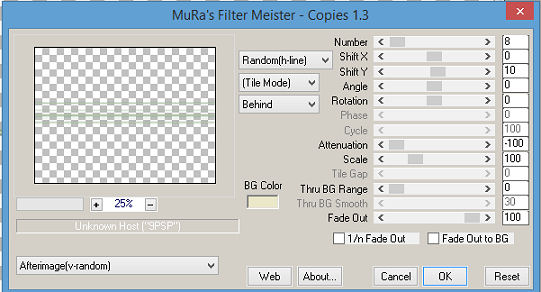
10- Plugin MuRa's Meister > Copies
11-
Duplicate Layer
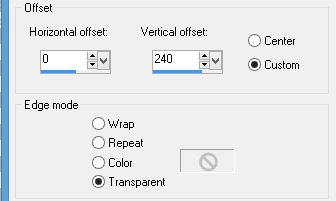
12- Effects > Image Effects > Offset:
13- Go
back to Copy of raster 1:
14- Image > Rotate > Free rotate: 90.00 - Right - All
Layers unchecked.
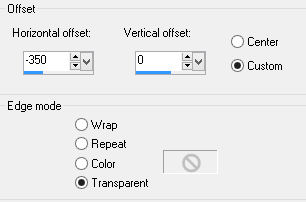
15- Effects > Image Effects > Offset:
16- Layers
> Merge Down
17- Drop Shadow > 1/1/86/1.00
18- Sharpen More
19- Turn the visibility of Raster 1 back on: Select All
add a new layer > Paste into Selection with the
misted of your choice.
20- With the Deform Tool position your figure
filling the space well.
21- Adjust > Brightness/Contrast > 0/20
22- Layers
> Merge Down
23- New Layer
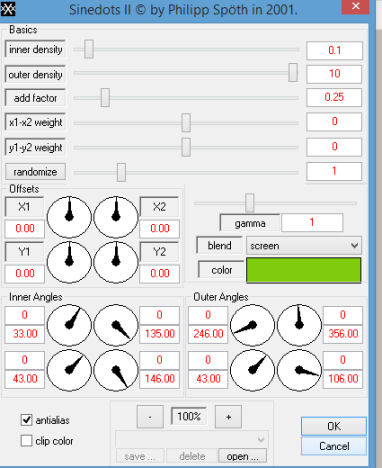
24- Plugin DragonFly > Sinedots_II
Settings to your liking - I used them as shown in the screenshot
25-
Position the Sinedots layer to your liking, using
resize (optional),
finishing with Sharpen More.
26- Merge Visible
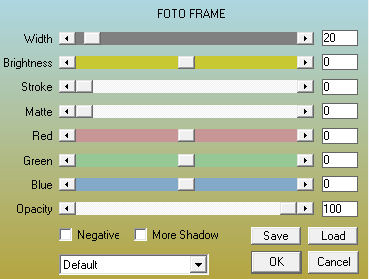
27- Plugin AAA Frames > Foto Frame
28-
Apply your tube, position it harmoniously
using Drop Shadow and Brightness Contrast.
29-Layers > Merge > Merge All
30- Sign it and save as jpeg.
** Tutorial created in SP-24/03/2015 by Edith
Spigai **
Credits:
Tag Moonlight
Tube - By Hebe
Landscape -LB Tubes
Tutorial and Formatting: EdithSpigai
Copyright ©2016/2026 - Web Design - NaiseM®

|