-PSP_X7 Effects
-Plugin Carolaine and Sensibility
-Plugin VM Instant Art
-Filters Unlimited 2.0 > Tile & Mirror
-Plugin Funhouse
-Plugin Greg's Factory Output Vol III
-Tube, Mask, Brush
Instructions

Use the little arrow to mark your line
Click it and drag it wherever you like
|
|
1- Open a new image of 850 x 550 - fill it with a
gradient
Linear > A=0/R=1 - invert checked.
F/#4e172b - B/#ed7191
2- Plugin Carolaine and Sensibility > CSHLines > 2/0/10
3- Effects > Enhance
*Turn off the visibility of this layer*
4- New Layer > fill with the same gradient from step 1
5- Plugin VM Instant Art > Tripolis > 50/76/52/136/127
6- Effects > Enhance
7- Image > Resize > 80%
8- Select with the Magic Wand tool > Selections - Invert
9- Effects > Drop Shadow > 5/5/85/35 #000000
(Repeat in negative) - Select None
*Turn off the visibility of this layer*
10- New Layer > Fill with white #ffffff
11- Apply the Mask _Narah _Abstract 127 > Merge Group
12- Layers > Blend Mode > Overlay
*Turn off the visibility of this layer*
13- New Layer > fill with the same gradient from step 1
14-Image > Resize > 50%
15- Filters Unlimited 2.0 > Tile & Mirror > Kaleidoscope 1 >
15/33
16- Select with the Magic Wand tool > Selections - Invert
17- Selections > Modify > Select Selection Borders > 2
Both Sides and Anti-alias > Checked.
18- Fill with the Foreground color (#4e172b)
Select > None
19- Image > Resize 70%
**At this step > turn the visibility back on for the layers that were
turned off.**
20- Effects > Image Effects > Offset > (-220) / (160)
Custom and Transparent - Checked
21- Effects > Drop Shadow > 4/4/86/43 #000000
22- Duplicate Layer
23- Image > Mirror (horizontal)
24- Image > Mirror (vertical) or Flip
25- Image > Free Rotate > 90,00 > Right
26- Effects > Image Effects > Offset > 60/28
Custom and Transparent - Checked
27- Layer > Arrange > Merge Down
*Opacity > 80% **
28- Merge Visible.
29 - Image > Add Borders 2 px - Foreground color (#4e172b)
30- Image > Add Borders 40 px - color (#ffffff)
31- Select with the Magic Wand tool
32- Fill with the gradient from step 1, changing the foreground color
to Black #000000
33- Plugin Funhouse > Twister > 255
34- Adjust > Sharpen - Select > None
35- Image > Add Borders 2 px - Background color (#ed7191)
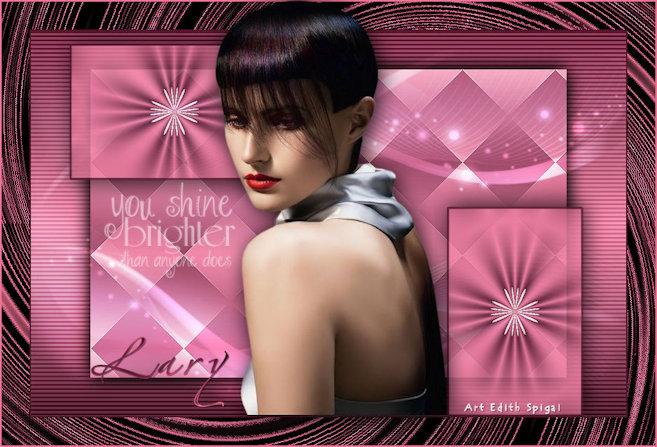
36- Apply your tube using Drop Shadow.
37- With the Paint Brush tool, stamp your Brush
*if you prefer, lower the opacity to 70%*
38- Write the text **Lary** with the Font > Zapfino Linotype
Three
I set it to size 90
39- Plugin Greg's Factory Output Vol III > Pool Shadow (Default)
40- Effects > Drop Shadow > 1/1/50/1,00 #000000
41- Layers > Merge > Merge All
42- Adjust > Brightness and Contrast > Brightness/contrast
43- Sign it and save as jpg.
** Tutorial created in SP_11/04/2016 by Edith Spigai **
Credits:
Tube: K@rine Dre@ms
Tube: Crisi
Mask _Narah _Abstract 127
Tutorial: EdithSpigai


Copyright ©2016/2026 - Web Design - NaiseM®