|
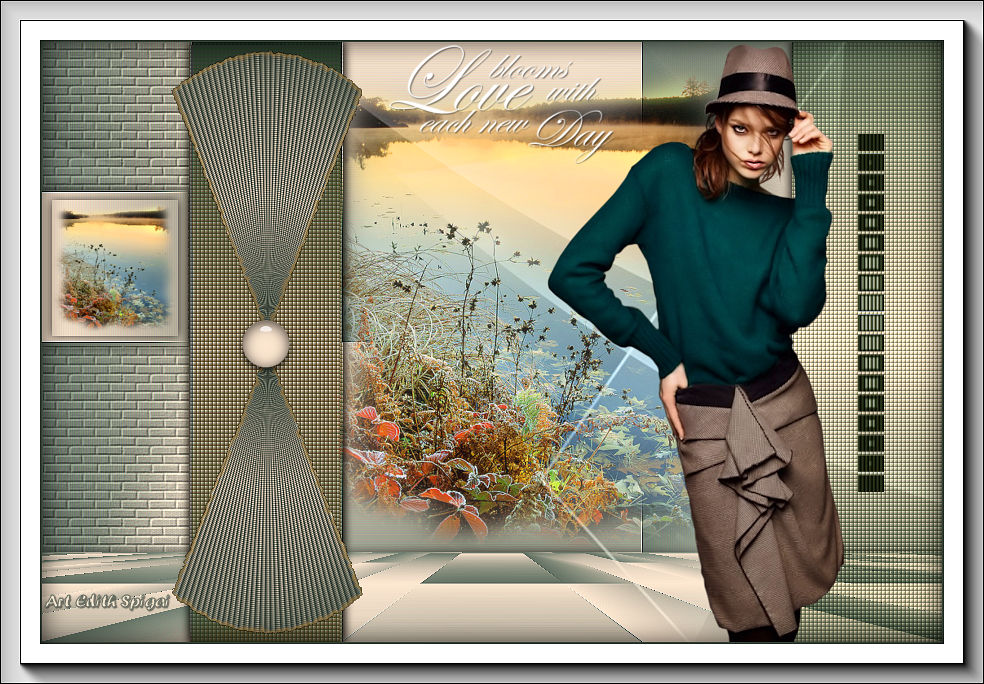 
**HARMONY**

-Efectos del PSP_X8
-Plugin Mhedi > Sorting Tiles
-Plugin Alien Skin Xenofex 2 > Burnt Edges
- Plugin MuRa's Meister > Perspective Tiling
-Plugin AAA Frames > Foto Frame
-Tube
-Misted
-Decos/Mask
INSTRUCCIONES
Usa la flechita para marcar tu línea
Haz clic en ella y arrástrala adonde quieras
|
|
1- Abre la imagen transparente de 900 x 600.
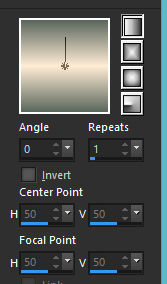
2- Rellena con un gradiente linear formado por dos
colores:
Foreground = (#5b675c)
Background = (#ffecd5)
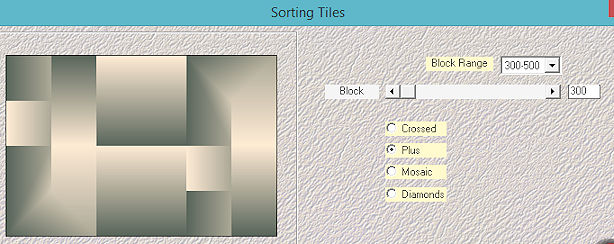
3- Plugin Mhedi > Sorting Tiles > Plus
4- Effects > Enhance More
5- Selections > Load/Save Selection > Load Selection
From Disk > hat_harmony_1
6- Layers > Promote Selection to Layer > Select None
7- Effects > Texture Effects > Blinds
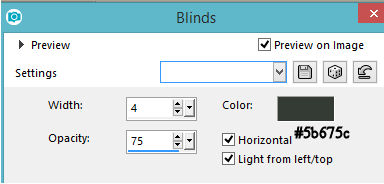
8- Effects > Texture Effects > Blinds
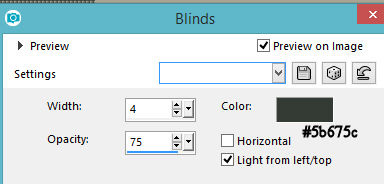
9- Layers > Duplicate
10- Effects > Image Effects > OffSet > 600/0 - Custom y
Transparente marcados.
11- Activa la promoted selection > Layers > Duplicate
12- Effects > Distortion Effects > Polar Coordinates
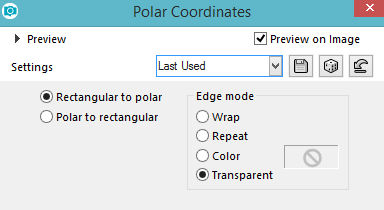
13- Layers > Duplicate > Image > Mirror (Horizontal)
14- Layers > Merge Down
15- Layers > Arrange > Bring to top
16- Image > Resize 65%
17- Image > Free Rotate
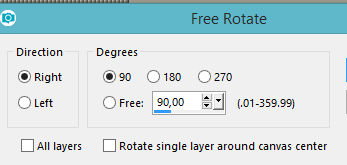
18- Effects > Image Effects > OffSet > (-225) /0 -
Custom y Transparente marcados.
19- Plugin Alien Skin Xenofex 2 > Burnt Edges
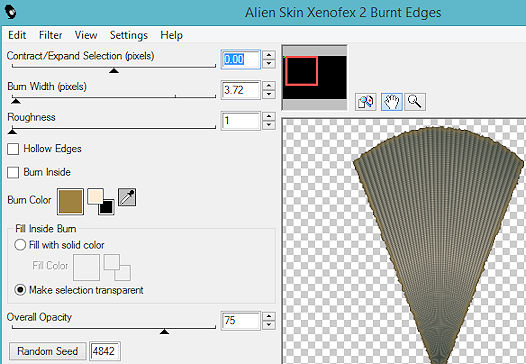
20-Adjust > Sharpen More
21- Effects > Drop Shadow > 0/0/80/40 en color negro
#000000.
22- Activa la copy of promoted selection > Layers > Merge
Down
*Si prefieres cambia el Blend Mode a Multiply
23- Effects > Drop Shadow > 0/0/75/15 en color negro
#000000.
24- Activa la Raster 1 > Selections > Load/Save Selection
> Load Selection From Disk > hat_harmony_3
25- Layers > Promote Selection to Layer
26- Effects > Drop Shadow > 0/0/75/15 en color negro
#000000.
27- Selections > Modify > Contract > 10
28- Effects > Drop Shadow > 0/0/75/15 en color negro
#000000.
29- Copy en el misted de tu elección y paste into selection
> Select None.
(Quita la visibilidad de esta layer y resérvala)
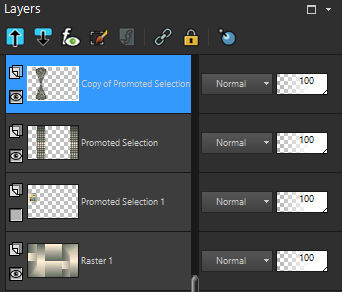
30- Activa la Raster 1 > Selections > Load/Save Selection
> Load Selection From Disk > hat_harmony_2
31- Layers > Promote Selection to Layer > Select None
32- Effects > Texture Effects > Texture
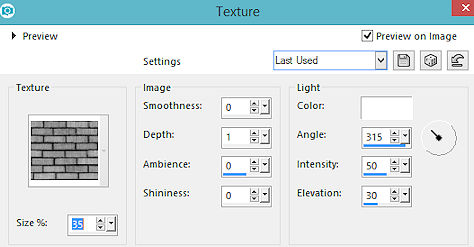
33- Adjust > Sharpen
34- Activa la Raster 1 > Layers > Nueva Layer
35- Nueva Layer rellenar con el color #ffecd5f
36- Aplicar la Mask - Nara_Mask_0405
Merge Group > Image > Mirror (horizontal)
37- Layers > Blend Mode > Luminance (Legacy)
38- Activa la Raster 1 > Layers > Duplicate
39- Plugin MuRa's Meister > Perspective Tiling >
80/0/0/15/0/30/100/255
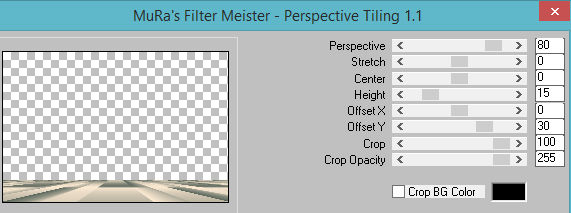
40- Effects > Drop Shadow > 0/0/75/15 en color negro
#000000.
Layers > Arrange > Move Up > 2 Veces
41- Activa la Raster 1 > Selections > Load/Save Selection
> Load Selection From Disk > hat_harmony_4
42- Nueva Layer y paste as new Layer en el misted de tu
elección. (posiciona.) Select None.
DISPOSICIÓN DE LAS LAYERS
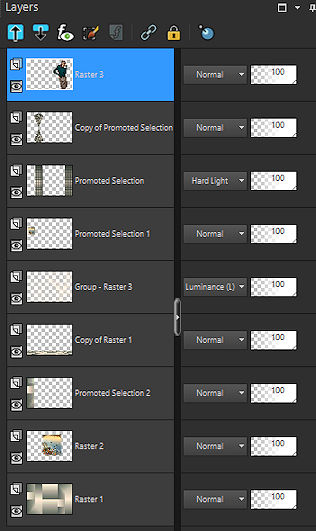
43- Aplica el Deco_Harmony y posiciónalo como en la figura.
44- Aplica el deco, ST_Ani2 > Adjust > Sharpen
45- Aplica el texto y haz un resize de 50% (opcional)
46-Finaliza con tu tube principal, usa drop shadow a
gusto.
47- Image > Add Borders > 2 pxs en el color (#5b675c)
48- Select All > Image > Add Borders > 40 pxs en el color
#ffecd5
49- Selection > Invert
50- Effects > Drop Shadow > 0/0/80/40 en color negro
#000000.
Select > None
51- Plugin AAA Frames > Foto Frame
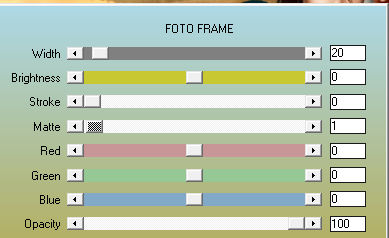
52- Repetir el paso 51 con las mismas configuraciones.
53-Plugin AAA Filters > Custom > Sharp (o como
prefieras...)
54- Layers > Merge All
55- Firma y guarda en jpeg.
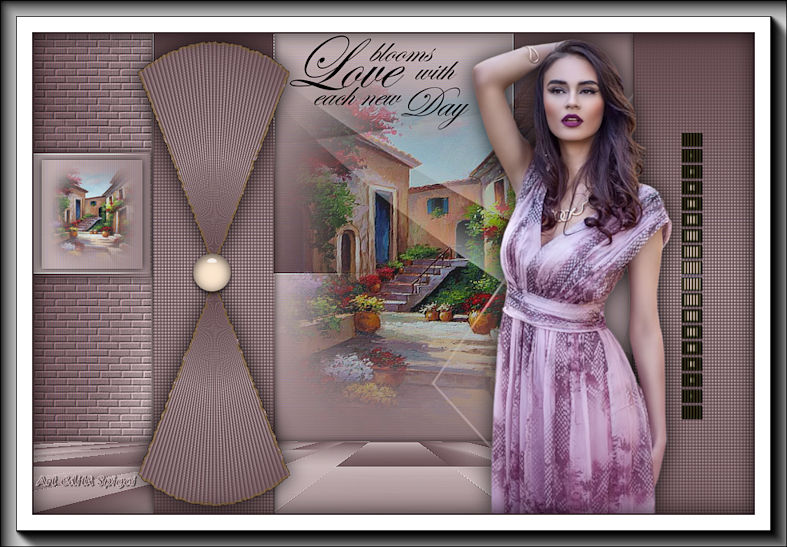
** Tutorial elaborado en São
Paulo_Brasil_23/07/2018 por Edith Spigai **
Créditos:
Tube: By Roby/Karine Dreams
Misted: By anna.br/Luz Cristina
Mask: Narah
Tutorial: Edith Spigai
Copyright ©2016/2026 - Web Design - NaiseM®

|