|
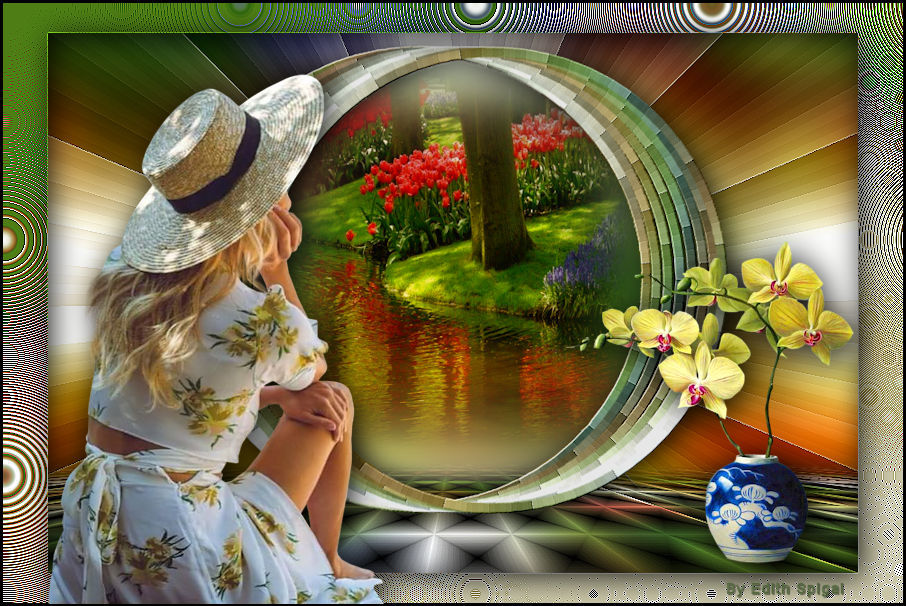 
**FLOWERS IN SEPTEMBER**
MATERIAL
-PSP_X7 Effects
-Plugin MuRa's Seamless
-Plugin MuRa's Meister
-Plugin Tramages
-Plugin Nik Software
-Tube/Misted
-Selection (attached)
INSTRUCTIONS

Use the little arrow to mark your line
Click it and drag it wherever you like
|
|
1-Open a Misted > Edit > Copy
2- Open a New Transparent Image of 900 x 600 pxs
3- Select All > Paste Into Selection > Select > None.
4- Effects > Image Effects > Seamless Tiling > Default
5- Layers > Merge All
Promote Background Layer
6- Adjust > Blur > Gaussian Blur > Radius: 30.00
7- Duplicate this layer 2 times and set aside raster 1 and the
copy of raster 1.
8- On copy (2) of raster 1 > Apply:
Plugin Tramages > Gradiente Spokes Ratio Maker > 107
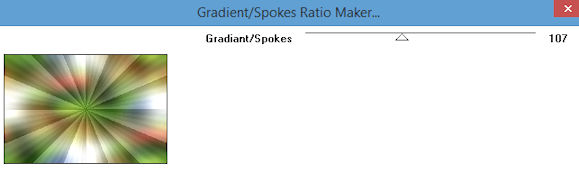
9- Effects > Edge Effects > Enhance
10- Selections > Load/save > Load Selection From Disk -
flores_1
11- Selections > Modify > Select Borders
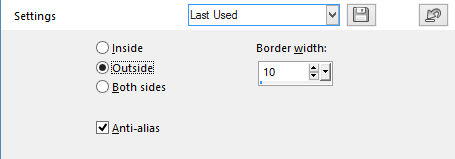
12- Promote Selection To Layer > Select > None
13- Plugin MuRa's Meister > Copies
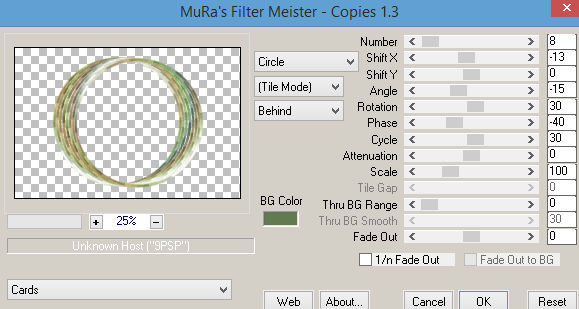
14- Plugin MuRa's Seamless > Emboss at Alpha > Default
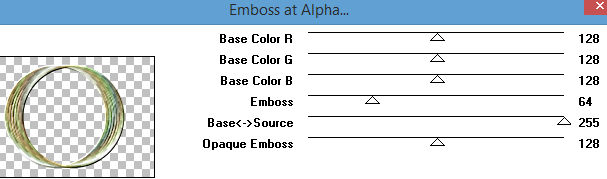
15- Effects > Image Effects > OffSet > 0/25 - Custom and
Transparent checked.
16- With Magic Wand select the central part of the circle,
click on the layer copy(2) raster 1 and delete.
17- Go back to the circle layer and paste into selection your
misted
from item 1 > Select > None.
18- Effects > Drop Shadow > 4/4/86/43
19- Activate the circle layer and apply:
Effects > Drop Shadow > 4/4/86/43
20- Close all the layers and activate raster 1:
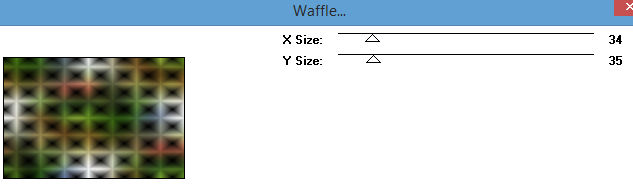
Plugin Tramages > Waffle
21- Effects > Edge Effects > Enhance More
22- Plugin Mura’s Meister > Perspective Tiling >
80/0/0/20/0/0/100/255
23- With the Magic Wand Tool - Feather 30 - Click on the
transparent part

24 - Delete > six times - Select > None
25- Effects > Drop Shadow > 4/4/86/43
26- Layers > Arrange > Move Up (2 times)
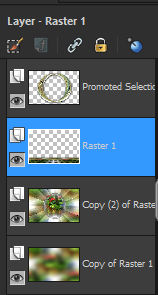
27- Activate the layer copy (2) of raster 1 and apply:
Plugin Nik Software > Color Efex Pro Complete
Bi- Color Filters > Color set 2
( as you prefer)
28- Close the layer copy of raster 1 > Merge Visible.
29- Image > Resize 90% All layers unchecked.
30- With the Magic Wand tool select the transparent
part.
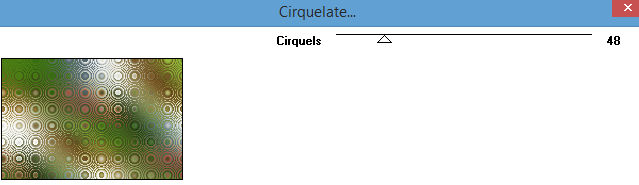
31- Activate the layer copy of raster 1
Plugin Tramages > Cirquelate
*note the foreground and background in the
colors of your images.*
32- Effects > Edge Effects > Enhance
33- Effects > Drop Shadow > 4/4/86/43
34-Selections > Invert
Effects > Drop Shadow > 4/4/86/43
Select > None
35- Image > Add Borders > 3 px in black.
36-Layers > Merge > Merge All
37- Sign it and
save as jpeg.
** Tutorial created in São Paulo_Brazil_08/09/2016 by
Edith Spigai **
CREDITS:
Tube: Maryse
Misted: Maryse
Vase: Cibi Bijoux
Tutorial: Edith Spigai
Copyright ©2016/2026 - Web Design - NaiseM®

|