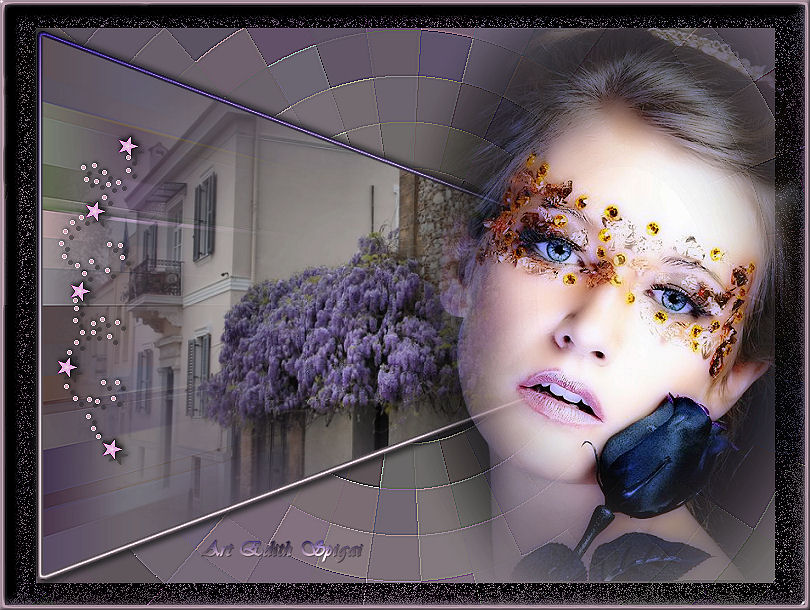
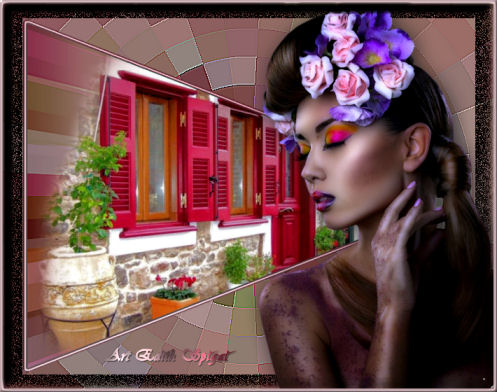
1-Open a Misted in PSP, choose two colors and place them
in the Materials Palette...
Edit > Copy.
2- Open a New Transparent Image of 800 x 600px
Fill this image with a gradient formed
by the colors chosen in item 1 > Style Linear >
Angle=0 - Repeats=0 > Invert Checked.
B= #291D5F
F= #C4A8B7
3- Selections > Select All > Edit Paste Into
Selection >
Selections > Select None
4- Effects > Image Effects > Seamless Tiling >
Default
5- Adjust > Blur > Radial Blur > Twirl-
100/30/0/0/50 - Elliptical Checked.
6- Effects >
Edge Effects > Enhance More.
7- Plugin VM Toolbox > Radial Mosaic > 54/94/128
8- Plugin FM Tile Tools > Blend Emboss (in the
settings that open)
9- Sharpen More (2 times if you prefer)
10- Duplicate Layer - Set Raster 1 aside
11- On the copy of the Layer: Effects > Geometric Effects >
Perspective Horizontal > 100 (Transparent)
12- With the Magic Wand Tool select the
effect.
Selections > Invert
Edit Paste Into Selection with the Misted from item 1
13- Selections > Modify > Expand = 2
- Selections > Modify > Select Selection Borders = 3
14- Fill with the gradient from item 2
15- Effects > 3D Effects > Inner Bevel - Select None
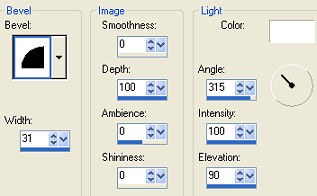
16- Image >
Resize > 90% All Layers unchecked.
17- Effects > 3D Effects > Drop Shadow: 4/4/80/8 -
repeat in negative.
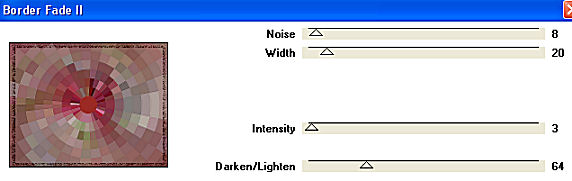
18- Go back to raster 1 and apply: Alf's Border
Fx Plugin >
Border Fade II > 8/20/3/64
19- Insert your tube positioned on the right side.
Apply: Plugin Xero > Porcelain with the setting you
prefer.
Drop shadow > 4/4/86/40.
20- Use of Accents is optional.
21- Image > Add Borders > 5 in the lightest color of your
work.
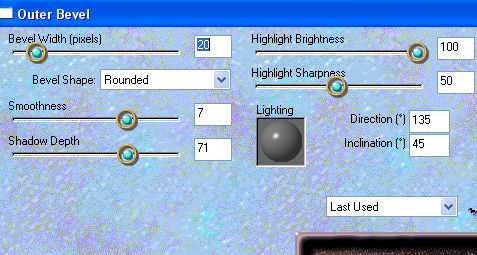
Select with Magic Wand and apply.
- Eye Candy 3.1 Plugin > Outer Bevel:
22- Sign and
save as JPEG
Credits:
Misted: By Nara Pamplona/ by anna.br
Tube: By Mery Design/ By Mary
Tutorial: Edith Spigai


Copyright ©2016/2026 - Web Design - NaiseM®