|
**
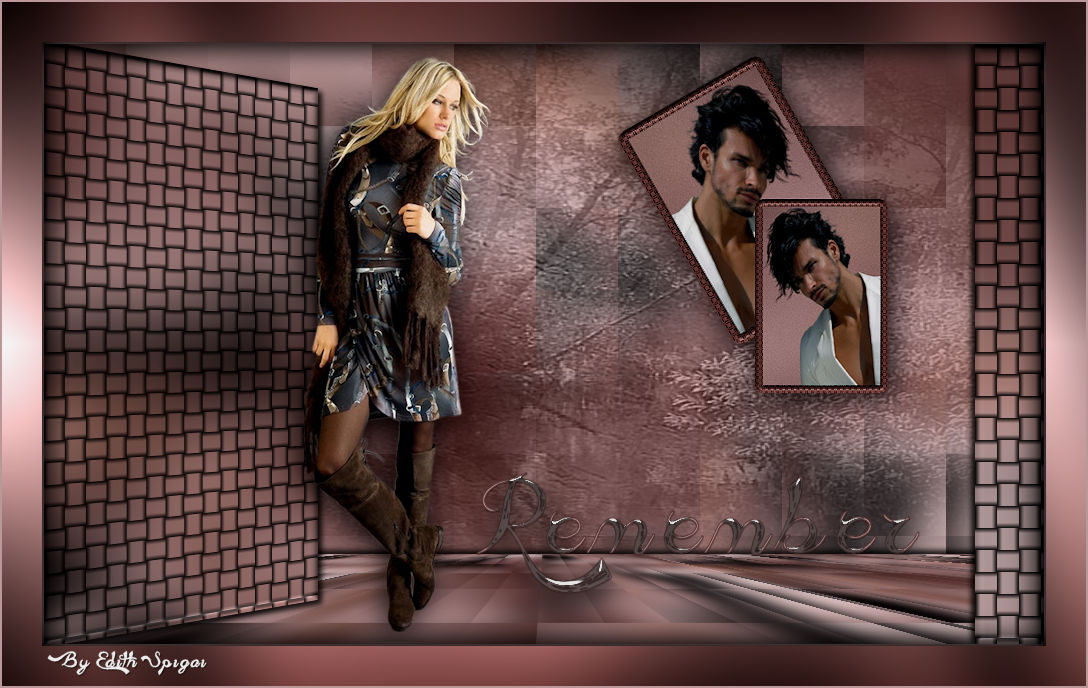
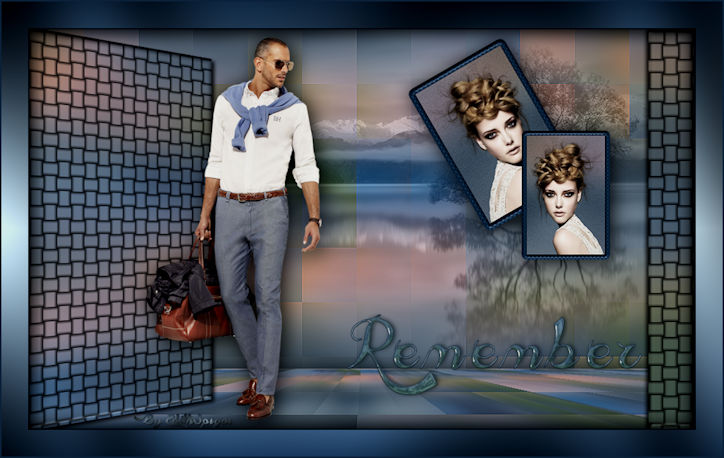
REMEMBER **

-PSP_X7 Effects
-Plugin MuRa's Seamless
-Plugin VM Distortion
-Plugin Andromeda
-Plugin Graphics Plus
-Plugin Screen Works
-Plugin Eye Candy 5: Impact
-Tubes
-Remember Selections - (attached)
INSTRUCTIONS
Use the little arrow to mark your line
Click it and drag it wherever you like
|
|
1- Open a new image of 1000 x 600 - fill with a
gradient
Linear > A=0/R=1 - invert checked.
#5a3533 - #c4a2a3
2-Open a tube or misted > Edit > Copy.
3- Select All and paste into selection in the chosen tube >
select none.
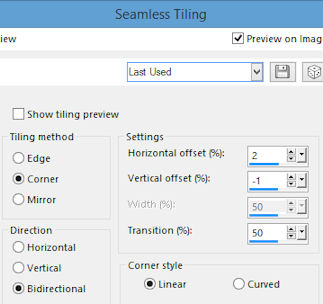
4- Effects > Image Effects > Seamless Tiling >
5- Adjust > Blur >
Gaussian Blur > 25,00
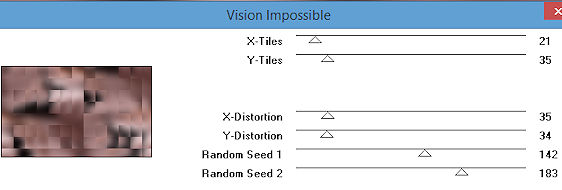
6-Plugin VM Distortion > Vision Impossible >
21/35/35/34/142/183
7- Effects > Enhance
8- Duplicate Layer
9- Set aside the copy of the Layer and go back to Raster_1
10- Selections > Load/save > Load Selection From Disk -
Remember_1
11- Promote Selection To Layer
12- Adjust > Blur > Gaussian Blur > 25,00
13- Plugin Graphics Plus > Weaver > 22/57

14- Select > None
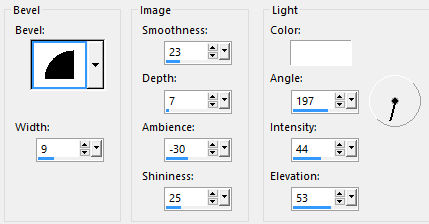
15- Effects > 3D Effects > Inner Bevel
16- Plugin Andromeda > Perspective
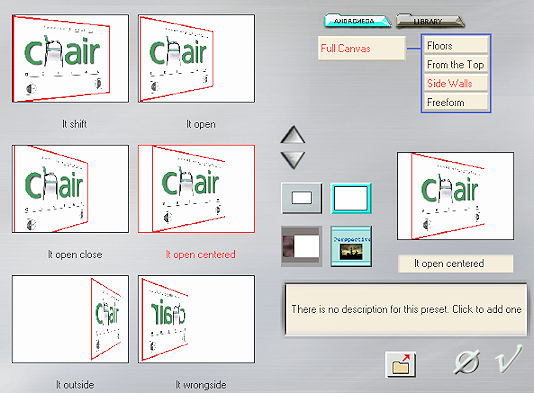
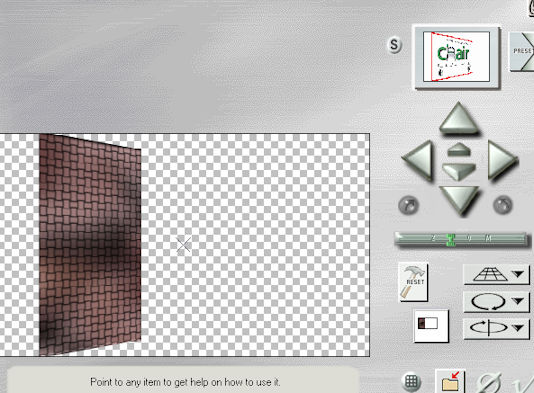
17- Effects > Image
Effects > Offset > -114/0 - Custom and transparent
checked
18- Effects > Drop Shadow > 4/4/80/8,00 - color #000000
19- Activate Raster 1 > Selections > Load/save > Load
Selection From Disk - Remember_2
20- Promote Selection To Layer
21- Adjust > Blur > Gaussian Blur > 25,00
22- Plugin Graphics Plus > Weaver > 22/57
23- Select > None
24- Effects > 3D Effects > Inner Bevel (same
settings as step 15)
25- Effects > Drop Shadow > 0/-4/80/8,00 - color #000000
26- On Raster 1 > Plugin Mura's Seamless > Perspective
Tiling >
80/0/0/15/0/0/100/255
27- Effects > Drop Shadow > 4/4/86/43,00 - color #000000
28- Open a Misted > Edit > Copy
29- Activate the copy of Raster 1 > Layers > Arrange > Send
to Bottom
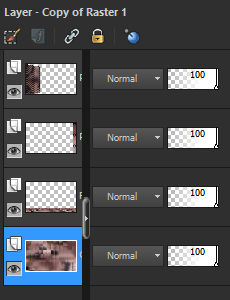
30- Select All >
New Layer > Paste into selection > position the image
centered.
Select > None.
31- Blend Mode > Luminance (Legacy) Opacity 70%
32- Layers > Merge Down
33- Selections > Load/save > Load Selection From Disk -
Remember_3
34- Promote Selection To Layer
35- Adjust > Blur > Gaussian Blur > 25,00
36- Adjust > Add Noise > 5 (gaussian and monochrome
checked)
37- Adjust > Sharpen
38- Insert a tube as paste into selection.
39- Selections > Modify > Select Borders
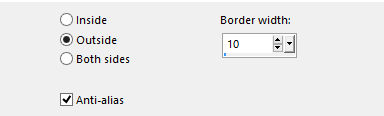
40- Fill with the solid color (#5a3533)
41- Plugin Screen Works > Block Tile
42- Effects > 3D Effects > Inner Bevel (same
settings as step 15)
43- Adjust > Sharpen
Select > None
44- Image > Resize > 90%
45- Duplicate Layer > Image > Resize 80% > Image >
Mirror
46- Go back to the layer of the first frame > Image > Free
Rotate > 30,00 > Left
47- Layers > Merge Down > Position it like the result of the
tutorial.
48- Adjust > Sharpen
49- Effects > Drop Shadow > 4/4/86/43,00 - color #000000
50- Insert your main tube > use the same Drop shadow
as in step 48
51- New Layer > Activate the Text Tool and set it up
as in the screenshot.
"Remember"

52- Plugin Eye
Candy 5: Impact > Glass > Clear
*choose the effect in the colors of your work*
53- Effects > Drop Shadow 1/1/50/1,00 (optional)
54- Layers > Merge Visible.
55- Image > Add Borders > 2 px in the light color (#c4a2a3)
56- Image > Add Borders > 40 px in white (#ffffff )
57- Select with Magic Wand > fill with the gradient
from step 1.
58- Plugin Graphics Plus > Cross Shadow
59- Effects > Drop Shadow > 4/4/86/43 repeat with
negative values.
Select > None
60- Image > Add Borders > 2 px in the light color (#948865 )
61- Adjust > Brightness and Contrast > Brightness/Contrast
> -10/0
62- Sign it and save as jpeg.
** Tutorial created in SP_21/06/2016 by Edith Spigai
**
Credits:
Tubes: LB Tubes/Grisi/Maryse
Misted: Ana Ridzi/Animabelle
Created by Edith Spigai

Copyright ©2016/2026 - Web Design - NaiseM®

|